
Voice Notes Android: Record, Send and Manage Audio
Learn how to use voice notes android apps with app-by-app gestures, quick fixes and privacy checks before you share audio.
October 27, 2026
Music Marketplace Advisor
Buying & SellingYou're in a chat with a producer, trying to explain why the chorus needs a different feel. A voice note would be quicker than typing, but the microphone button doesn't behave the way you expected. Before you try again, check both the recording controls and the destination: that short message can become an audio file, a backup, a notification preview, and a transcript.
For voice notes on Android, the right workflow is simple: identify your app's gestures, check what it stores, record deliberately, and confirm the recipient can play what you sent.
Recording Gestures by Android App
| App | Start a recording | Lock for hands-free | Cancel |
|---|---|---|---|
| Google Messages | Hold the mic icon where supported | Watch for a lock prompt in the on-screen recording controls while holding | Look for a discard option in the recording controls before releasing |
| Hold the mic icon | Slide up to lock | Slide left before release | |
| Telegram | Hold the mic icon | Slide up to lock | Slide left before release |
| OohYeah direct messages | Tap the voice note control inside a direct message thread | Keep holding and watch for a lock option in the recording controls | Use the discard option shown during recording |
Find your app's row, then match the action you need. In WhatsApp and Telegram, check that you're pressing the microphone rather than another recording control on the composer bar. Google Messages and OohYeah direct readers to their own recording screens: press the control, read the prompts that appear, and check OohYeah's FAQ and help section for the current direct-message steps. If a gesture fails, check the app version before concluding that recording or locking is unavailable.
Locking frees your finger from the screen when you're carrying a bag or need to gesture while explaining something. Locked interfaces show separate send and discard controls, so a slipped finger stops the recording instead of sending half a thought. Set up the recording while stationary, and never operate the phone while driving.
Choose the control, not just the app
A hold-to-record interface is useful for a quick reply, but it can send before you've reviewed the message. A locked recording is usually the better choice when you need to explain an arrangement, pronounce an artist's name, or describe feedback without maintaining pressure on the screen. A sent note becomes an audio file the recipient can replay and potentially keep, so the gesture that gives you a review step before sending is the one worth using.
Practical rule: Test cancellation with harmless audio before recording anything you couldn't comfortably send by mistake.
Voice messaging is an established communication format, not a specialist recording task. TXTPlease's WhatsApp voice-message overview dates WhatsApp's voice-messaging introduction to 2013, which helps explain why people now expect audio replies alongside text.
For music conversations, choose the simplest control that gives you enough review time. A backstage update may suit a quick recording; an explanation of a disputed lyric deserves a deliberate stop and playback.
App updates can change gestures and button positions. Treat the table as a lookup, not a guarantee that every phone will show an identical interface.
Permissions and Privacy Before Your First Send
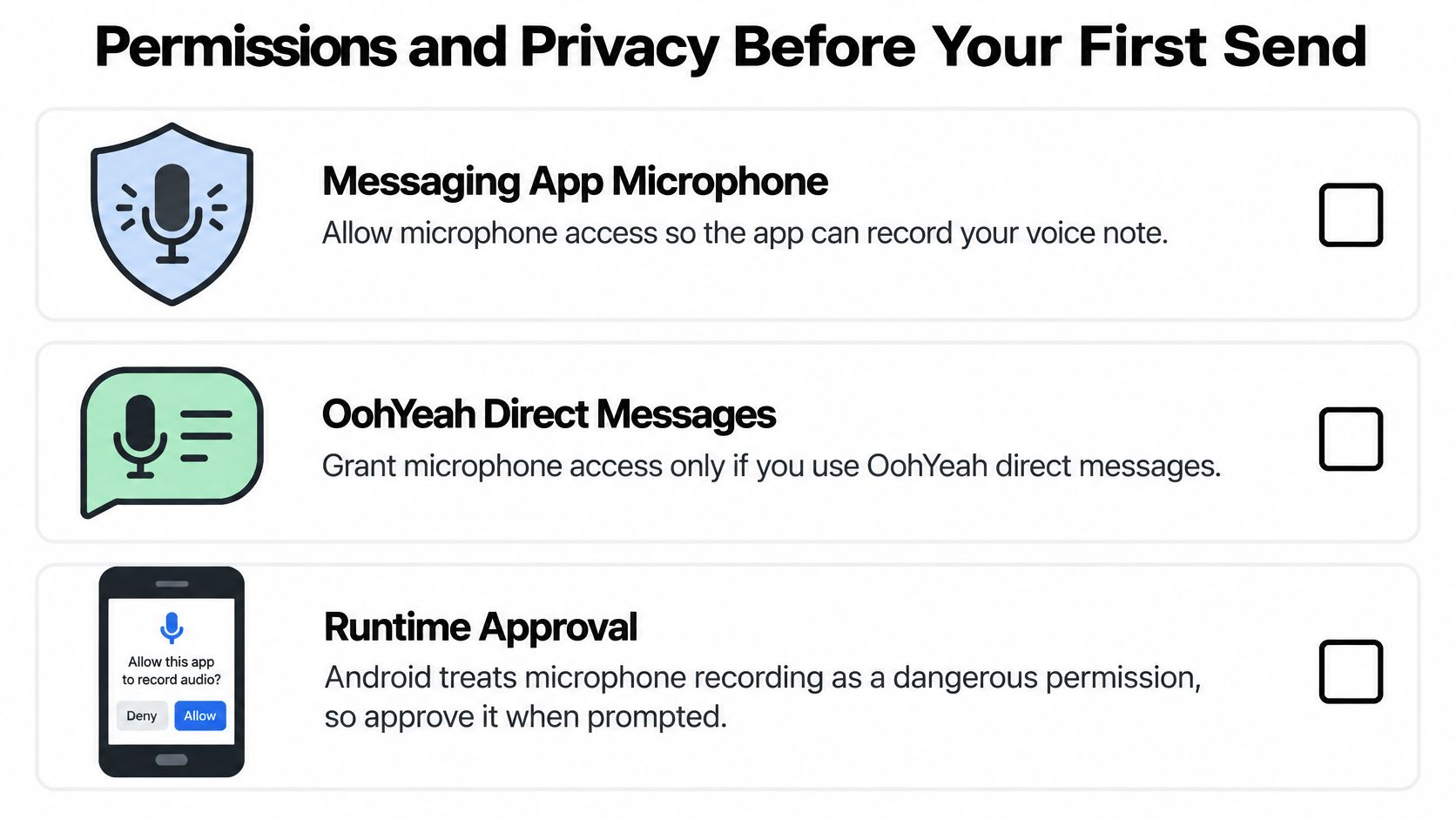
Grant microphone access to the messaging app you intend to use. Android classifies microphone recording as a dangerous permission requiring runtime approval, as explained in the Android MediaRecorder documentation. That classification describes the sensitivity of audio access, not a judgement that the app is malicious.
When the permission prompt appears, choose access limited to your intended use where Android offers that option. You can review or revoke access through Settings > Apps > your messaging app > Permissions > Microphone, although manufacturers use slightly different menu labels.
Use this checklist before making a sensitive recording.
Account for every copy
A private chat isn't the same as a local-only recording. Sending usually requires transferring audio through the messaging service, and the recipient may be able to save or forward it.
Check these separate places rather than assuming the chat bubble is the only copy:
- Device storage: The recorder, messaging app, or downloads folder may retain audio.
- Cloud backups: Chat backups and recorder syncing can preserve material after you remove a visible message.
- Notifications: Lock-screen previews may reveal the sender, surrounding text, or transcript excerpts.
- Transcripts: Speech-to-text creates another version of the content, with its own access and deletion settings.
On OohYeah, direct messages and voice notes sit alongside the marketplace and community. Confirm the current recording steps in its help section or FAQ, and review the privacy policy before sharing confidential material.
Pick the channel before recording
An unreleased demo for a producer: Capture it in a recorder with cloud syncing disabled if you need the initial recording to remain local. Review it, then share through a direct conversation with the intended producer and avoid transcription where controls permit. Once you send it, it's no longer local-only, regardless of where you originally recorded it.
A payment or royalty discussion with a manager: Use plain text for amounts, terms, and approvals. Text makes it easier for both people to inspect the wording, but it still needs the same care around recipients, notifications, and backups.
A personal fan message: Use a direct conversation rather than a community post. Hide lock-screen previews on your device, and remember that you can't control the recipient's notification settings.
Finished announcements belong in public or community spaces only when you're comfortable with a wider audience. Drafts, personal replies, and work-in-progress feedback need a narrower destination.
A direct message limits the initial audience. It doesn't prevent the recipient from making another copy.
Before sending, confirm the recipient's name and whether you're in a group. Review backup settings, disable automatic transcription for sensitive threads if supported, and delete derived text you no longer need.
Finally, send a harmless test to a trusted contact. Ask them to play it on another device and check the sound, displayed duration, and any generated transcript before you use the same route for confidential material.
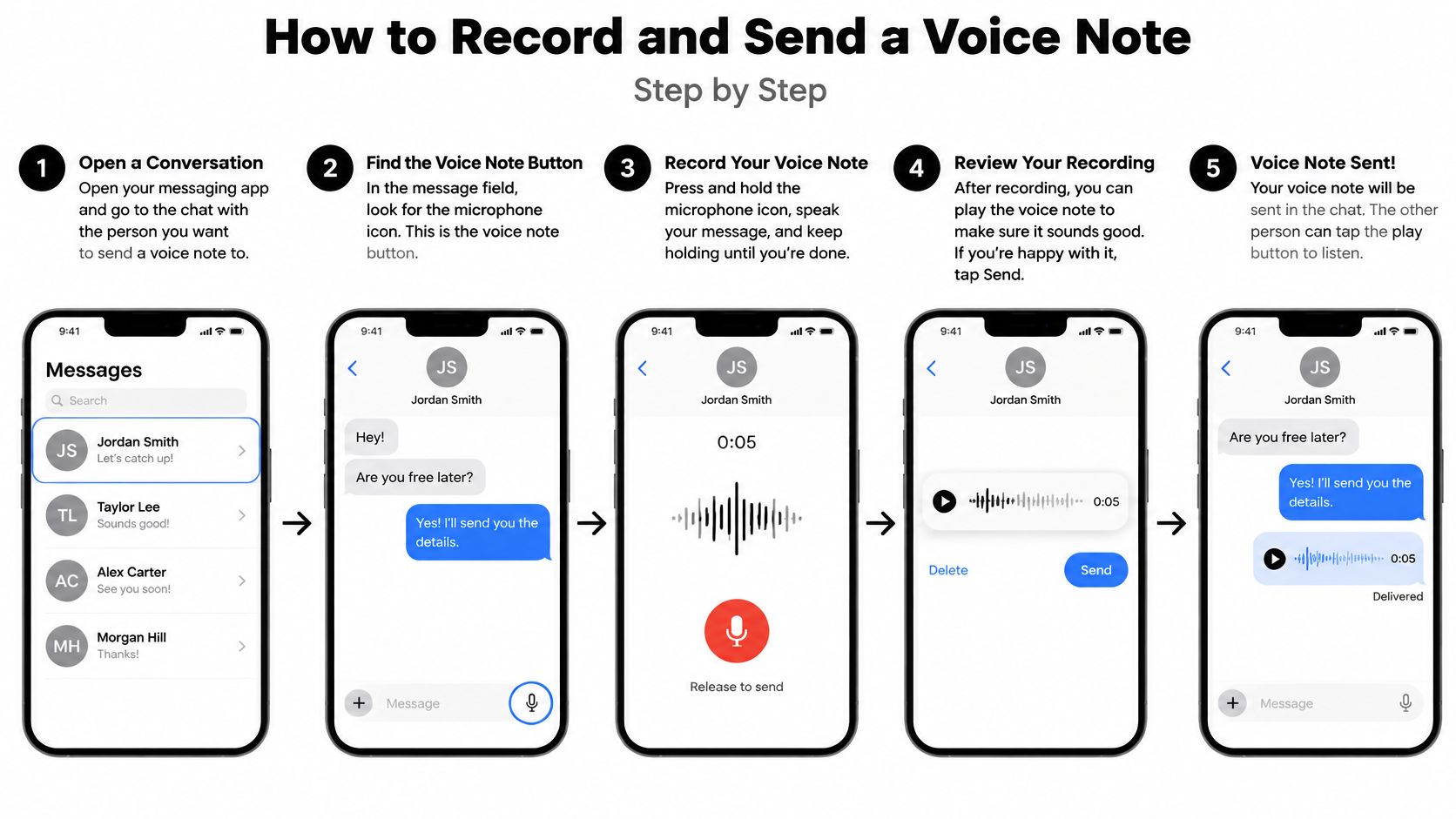
How to Record and Send a Voice Note Step by Step
Start with a harmless conversation so you can learn the controls without risking an unfinished demo or personal message. If you're discussing music, send a short text label first, such as the song title and the section you want the recipient to hear.
The visual guide shows the basic recording sequence; the app's own controls determine the final send action.
Record with a clear stopping point
Open the intended conversation and inspect the composer. In many interfaces, entering text replaces the recording control with a send button. Clear or send the draft text if you need the microphone to reappear, and distinguish the chat microphone from the keyboard's dictation microphone.
Start recording with your app's control. Use the lookup table for hold-to-record interfaces. Keep the phone comfortably near your mouth without speaking directly against it, and leave the microphone openings uncovered. Cases and fingers can obstruct them.
Watch for a moving timer or waveform. That gives you visible confirmation that the app has started capturing. Begin with the point of the message rather than a long introduction, and cover one topic before stopping.
Use locking or cancellation deliberately. Follow the gesture for your app rather than experimenting during a sensitive recording. If you lose your place, discard the take instead of adding a long correction that the recipient must untangle.
Finish using the control shown on screen. In supported hold-to-record modes, releasing sends the note. In locked mode, use the send arrow, discard control, or pause button if available. Don't assume a stop button also sends.
Inspect the outgoing bubble. Look for a duration and the app's sent-status indicator. A clock or pending symbol means you still need to check the connection or upload status.
Catch accidental short recordings. Releasing before you've spoken can produce an empty or clipped message. If that happens, use the available deletion option and send a complete replacement with a brief explanation.
Check the result, not just the animation
For feedback on a mix, separate the reference from the instruction: name the chorus, then explain what should change. If you're humming a melody, say where it belongs before you sing it so the recipient doesn't have to infer the context.
A sent indicator doesn't prove that someone listened. For an important handoff, ask the recipient to confirm playback rather than relying on the appearance of the bubble.
For a moving demonstration of recording controls, watch the walkthrough below.
A successful send has evidence at both ends: a sent-status indicator on your outgoing message and a recording with a playable duration on the recipient's screen.
Playing, Forwarding and Using Received Notes
Tap the play button on the received bubble. If nothing happens, check whether the app is still downloading the audio before repeatedly tapping or assuming the file is broken.
WhatsApp and Telegram offer playback-speed controls for reviewing speech more quickly. Use normal speed for sung ideas, pronunciation, rhythm, or mix feedback, since faster playback makes those details harder to judge.
For private listening, use headphones or try bringing the phone to your ear if the app supports earpiece playback. Confirm that the sound has actually moved away from the loudspeaker before relying on that behaviour in a shared space.
Forward with the original context
To forward a supported message, touch and hold the bubble, choose the forwarding action, and select the destination. Review the chat name before confirming, particularly when similarly named groups appear in the recipient picker.
A fan's comment in a community thread isn't automatically permission to circulate their voice elsewhere. Ask before forwarding personal audio, and include enough context that a new listener won't mistake an informal suggestion for an approved announcement.
Use transcripts as navigation
Research on mobile voice-message augmentations describes how automatic speech-to-text can omit non-verbal expression and intonation. A readable transcript can still leave you uncertain whether someone sounded enthusiastic, hesitant, or upset.
Read text to locate the relevant moment. Play the original when emotion, pronunciation, or musical intent matters.
Check names, lyrics, accents, and specialist music terms against the audio before quoting them. If the app allows corrections, fix the transcript without treating the corrected text as a replacement for the recording.
For messages worth keeping:
- Save deliberately: Use Star, Save, or Saved Messages where available, and add a searchable text label.
- Delete with the right scope: Removing a message for yourself doesn't remove it from the other person's conversation.
- Inspect shared deletion options: Delete-for-everyone controls have app-specific eligibility rules. They don't recall exported files or copies someone already made.
Recording and Playback Fixes
If the microphone button does nothing, check permission first. Open Settings > Apps > the messaging app > Permissions > Microphone, allow access for the intended use, then return to the conversation and retry. Menu names differ across Android manufacturers.
Permission isn't the only cause. Also inspect Android's system-wide microphone privacy control if your phone provides one, and make sure you're pressing the recording button rather than a disabled control.
| Symptom | Likely cause | Fix |
|---|---|---|
| Mic button does nothing | Microphone permission denied | Allow Microphone for the app in Settings, then retry |
| Start of the note is missing | Another app is using or interrupting microphone capture | End calls, close camera or voice-assistant activity, then record again |
| Notes sound muffled or distant | Covered microphone or unsuitable phone position | Uncover the microphone openings and move the phone closer |
| Bluetooth earbuds sound thin or choppy | Headset capture route or call-oriented audio processing | Disconnect the earbuds and retry with the phone microphone |
| Note stuck on a clock icon | Weak signal or background restriction | Retry on Wi-Fi; review background data and battery restrictions |
| Received note will not play | Incomplete download or automatic download disabled | Tap to download; update the app if playback still fails |
Isolate the input and connection
A call, camera session, or voice assistant can compete with recording or interrupt it. End the other activity, wait for its microphone indicator to clear, and make a fresh test note. You can't recover a beginning that wasn't captured.
Bluetooth problems need an input test, not just a volume adjustment. Some apps don't expose microphone selection, so disconnecting the headset is the most direct way to compare it with the phone's built-in microphone.
If the phone recording sounds clear, reconnect the headset and repeat the test. That comparison helps separate a routing problem from a blocked microphone or noisy room.
Fix pending uploads without losing the recording
Open the app and keep it visible while retrying a pending message. If it uploads only while the screen is active, inspect the app's background-data and battery settings; unrestricted battery use may help, but it also permits more background activity.
- Try immediately: Restore permission, uncover the microphone, disconnect Bluetooth, or change networks.
- Restart when capture stays stuck: Close the app first, then restart the phone if audio access still doesn't recover.
- Update for persistent faults: Install available app updates when the same failure survives a clean test.
Don't clear app storage or reinstall until you've checked how unsent recordings and chat backups are preserved.
Standalone Voice Memos and Managing Saved Files
A memo recorded outside a chat is still a file, and files get copied. Your phone's built-in recorder or a dedicated voice-recorder app will save it to a library, but it can also surface in backups, synced folders, and notification previews. Check syncing before you record anything that needs to stay on-device.
For music ideas, record at the device's default sample rate. Higher rates add file size without a clear benefit when you're capturing a melody or lyric sketch, and a setting the recorder doesn't clearly explain is one worth leaving alone.
Keep a usable original
- Name the recording: Include the song and section, such as Harbour chorus melody, rather than leaving an anonymous filename.
- Edit a copy: Preserve the original so trimming or processing doesn't remove something you later need.
- Validate before sharing: Check duration, file format, and playback on another device.
- Back up selectively: Put important recordings in a folder or storage account you control before removing the originals.
Check recorder usage in Settings > Storage and clear obsolete drafts in batches. A cloud-saved memo deserves the same privacy scrutiny as other uploaded audio, and attaching one to a chat counts as a fresh sharing decision: transcripts, forwards, and backups can each hold their own copy.
OohYeah brings music streaming, a creator marketplace, community posts, and direct fan communication into one platform. Visit OohYeah to explore those tools, then test a non-sensitive voice note before using audio for artist updates or personal fan replies.