How to Send a Song Through Text Message Quickly
Learn how to send a song through text message on iPhone and Android, from MMS limits to link sharing and compression tips that actually work.

September 21, 2026
Music Marketplace Advisor
Buying & SellingYou've probably done this before. You try to text a song to a friend, a fan, or a collaborator, tap send, and then watch the message hang, fail, or downgrade into something the other person can't open.
That's frustrating because music feels like it should move through a text thread as easily as a photo. In practice, it usually doesn't. If you want to know how to send a song through text message without wasting time, the answer is to stop treating every song share the same way.
There are three workable paths. Send a small audio attachment when the file is tiny enough. Send a voice note or short clip when the goal is a preview, not the full record. Send a link when you need the most reliable option. Once you think in those three buckets, the failures make sense and the process gets much easier.
Why Texting a Song Is Not as Simple as It Sounds
You open a text thread, tap the attachment button, pick a song file, and expect it to send like a photo. Then the upload stalls, the message fails, or the other person gets something they cannot play. That happens because “texting a song” covers three different methods that follow different rules: an MMS attachment, a voice note, or a link.
SMS itself is text only. Audio sharing in a text thread depends on MMS or on sending a URL. That sounds like a technical detail, but it changes what works on a phone.
The practical mistake is treating every music share like a file attachment problem. It is really a delivery choice.
A short demo for a collaborator can work as an attachment if the file is tiny. A melody idea with spoken context is often better as a voice note. A full song, especially a finished track, usually belongs behind a link because that avoids the carrier limits that break direct sends.
What people expect versus what actually works
Phones make sending media look simple. The interface suggests that if you can attach it, you can send it. Audio exposes the limits fast because message type, file format, and file size all affect delivery.
Practical rule: If it is a full track, start with a link. If it is a quick idea, choose a voice note or a very short attachment.
That distinction saves time because each option solves a different problem. MMS is for small files. Voice notes are for fast, informal sharing. Links are for reliability, full songs, and anything you do not want compressed or rejected.
The three paths that save time
Here is the version that holds up in real use:
- Use an MMS attachment for a trimmed clip, reference snippet, or other very small audio file.
- Use a voice note for rough ideas, toplines, reminders, or anything where speed matters more than audio quality.
- Use a link for full songs, polished mixes, and shares that need to work across phones without guessing.
I use the link-first approach for fans and clients because it removes the usual failure points. Direct attachments still have a place, but only when the clip is short enough and disposable enough that a failed send will not matter much.
Understanding File Limits and Format Rules Before You Send
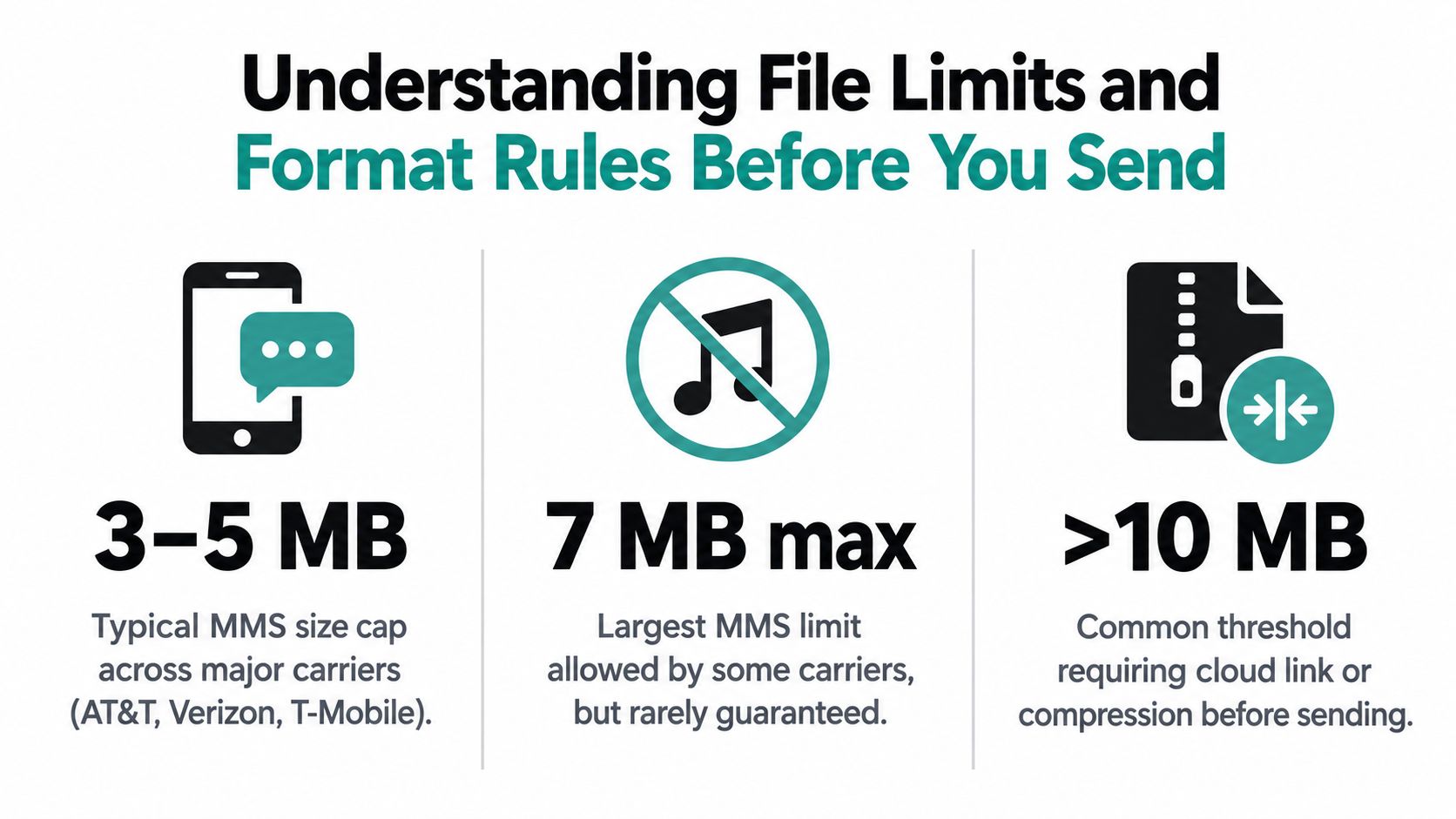
A song that looks easy to attach can still fail the moment it leaves your phone. The problem is usually not the text thread itself. It is the delivery method you picked.
MMS, voice notes, and links play by different rules. MMS attachments have tight size caps and limited tolerance for larger audio files. Voice notes are built for short recordings made inside the messaging app, not polished masters exported from a DAW. Links avoid both problems because the text only carries a URL, while the audio stays hosted elsewhere.
Why full songs often fail
A finished song file is usually far too large for direct texting as an MMS attachment. Even if one phone accepts the file, the carrier or the recipient's device may compress it, convert it badly, or reject it outright.
I see this most with collaborators who export a clean WAV or a high-quality MP3 and assume the Messages app will handle the rest. It usually will not. A rough 20-second preview might go through. A full-length track often will not.
That is why guessing by file type alone leads people in the wrong direction.
Format matters, but file size decides the outcome
Format still matters because some audio types stay smaller than others after export.
- MP3 is usually the safest choice for a small attachment because it compresses efficiently.
- AAC or M4A also work well for short, lightweight files.
- WAV gets large fast and is a poor fit for texting unless the clip is extremely short.
The trade-off is simple. Better fidelity usually means a bigger file. Bigger files break MMS first.
Voice notes are a separate category. They are convenient because the messaging app records and packages them for you, but they are best for spoken ideas, melody scraps, and quick context. They are not a dependable way to deliver a finished song with consistent sound quality.
Use the right path before you export
The fastest way to avoid failed sends is to choose the channel first, then prepare the file for that channel.
- MMS attachment: Use it for a very short clip that has already been trimmed and compressed.
- Voice note: Use it for casual ideas, not release-quality audio.
- Link: Use it for full songs, polished demos, mixes, and anything you want to arrive intact.
If the file looks like a real release asset, send a link. If it is a short piece of audio meant to start a conversation, an attachment or voice note can work. That one distinction saves time and cuts out most of the trial and error.
How to Share a Song by Text Without Hitting Size Limits
You export a full track, tap attach, and the text fails. Then you try again with a different format, and it still fails. At that point, the problem usually is not the song. It is the delivery method.
The reliable approach is to pick one of three lanes before you send: MMS attachment for a short clip, voice note for a rough idea, or link sharing for a full song. That choice matters more than anything else because it decides whether the file has to squeeze through a carrier limit or can play from the web without being compressed into oblivion.
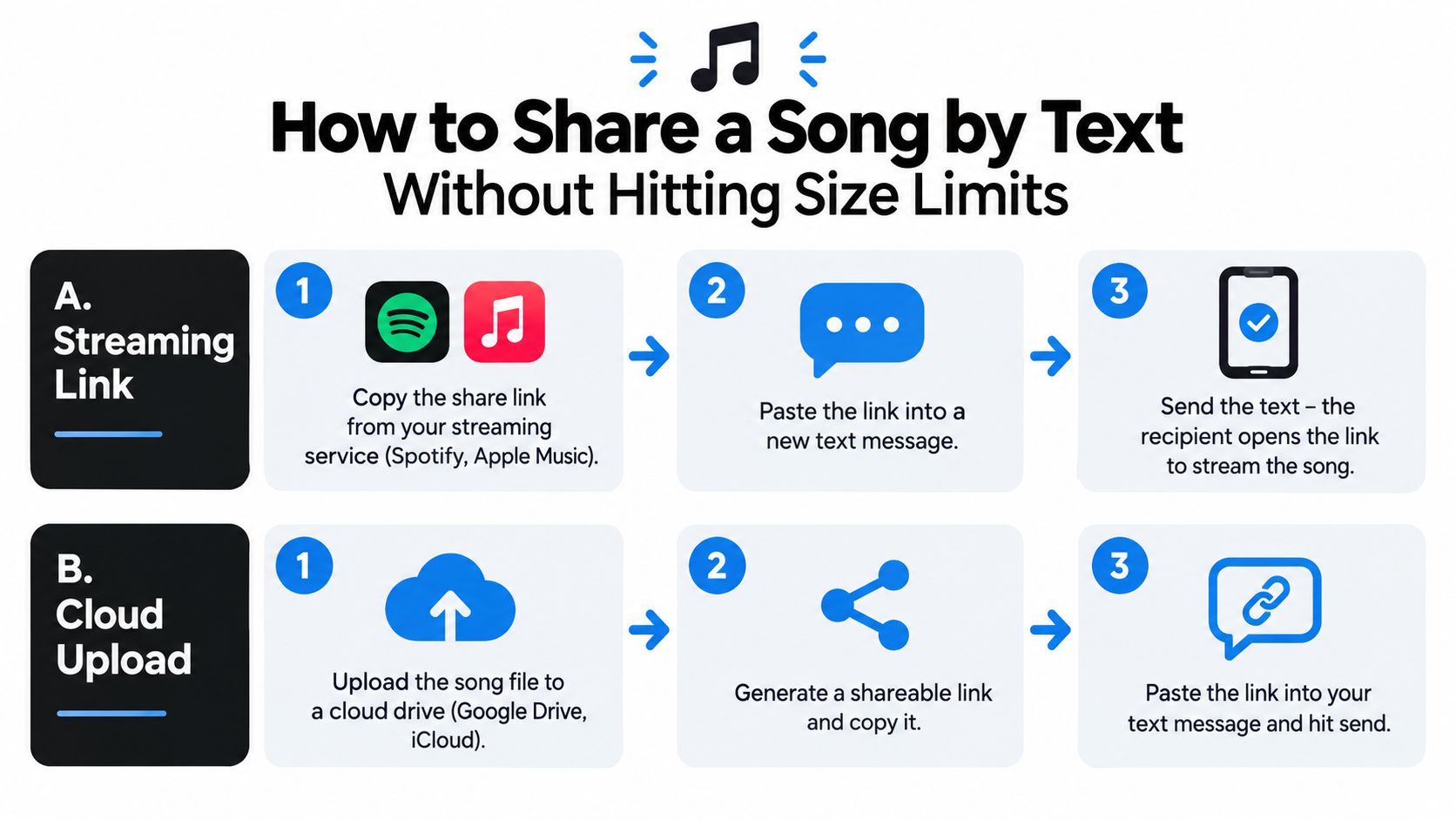
Workflow one: send a streaming link
Use this when the song already lives on Spotify, Apple Music, YouTube Music, SoundCloud, Bandcamp, or another platform with a built-in share button. For finished music, this is the cleanest text you can send.
Here is the process:
- Open the track in the music app.
- Tap Share.
- Choose Messages, or copy the link and paste it into your text thread.
- Add one line of context. “Hook starts at :40” or “this is the revised chorus mix” gives the recipient a reason to press play.
- Send it.
This route works well because the text stays small and the audio stays intact. If you send songs to listeners often, fan connections and music sharing tools can make that handoff cleaner than dropping raw links into every conversation.
Workflow two: send a cloud link when the recipient needs the file
Collaborators often need the actual audio file, not just a stream. Producers, DJs, video editors, and podcast teams usually want something they can download, drag into a session, or keep for reference.
Use this route:
- Upload the file to Google Drive, iCloud Drive, Dropbox, or similar storage.
- Set the permissions correctly so the recipient can open it without requesting access.
- Copy the share link and paste it into the text thread.
- Test the link in a private browser or on another device before you send it.
This is the method I trust for demos, alt mixes, stems, and WAV exports. It avoids MMS limits completely and keeps the file in its original format.
Send the lightest version that still does the job. If the other person only needs to hear it, send a stream. If they need to download or edit it, send a cloud link.
A quick visual walkthrough can help if you want to see the flow in action:
When an attachment or voice note still makes sense
Attachments and voice notes still have a place. They just solve narrower problems.
Use an attachment when:
- The clip is short enough to fit carrier limits
- You want playback inside the text thread
- You are sending a preview, not a full release file
Use a voice note when:
- You are sharing a melody idea, rough demo, or quick explanation
- Speed matters more than polished sound
- You want the message and the audio in one tap
Here is the trade-off. Attachments can be convenient, but they fail fast once the file gets long or uncompressed. Voice notes feel personal, but they are a poor container for finished music. For complete songs, link sharing wins because it removes the size fight entirely.
Choosing the Right Format and Making Files Small Enough to Send
A song that plays perfectly on your phone can still fail the second you try to text it. In practice, the problem is usually simple. The file is too large, the format is awkward for messaging, or you are trying to send a full track through a method that only works well for short audio.
Start with the job. Are you sending a finished song, a quick preview, or a rough idea?
That choice should decide the method before you touch export settings. A full track usually belongs in a link. A short preview can work as an attachment. A melody sketch or quick sing-through fits a voice note better than a music file.
Which format is easiest to text
Format decides whether the file has any chance of getting through as an attachment.
| Audio Format and Size Options for Texting | Typical Size per Minute | Best Use for Texting |
|---|---|---|
| MP3 | Small to moderate | Best all-around choice for short clips and lightweight attachments |
| AAC | Small to moderate | Good for compact previews when your phone exports in this format |
| M4A | Small to moderate | Useful for mobile-created recordings and short demos |
| WAV | Large | Better for production handoff through cloud links, not direct text attachment |
The pattern is consistent. Compressed formats such as MP3, AAC, and M4A give you a real shot at sending an attachment. WAV usually does not, unless the clip is very short.
I only use WAV for text delivery when I am sending a tiny excerpt and I already know it fits. For demos, references, and client review, compressed preview files are easier to send and easier for the other person to open on the first try.
Trim first, then reduce file size
Cutting the song down usually helps more than crushing the quality.
If someone needs to hear the hook, intro, or one transition, send that section. A short, clean clip is more useful than a full file that sounds smeared from over-compression. It also loads faster in the thread and gets played more often.
Use this order:
- Export only the section they need
- Choose MP3, AAC, or M4A if your app gives you the option
- Check the actual file size before attaching it
- Switch to a link if the file still looks too big for a text attachment
That last step matters. People waste time trying three or four exports when the right answer is to stop treating a full song like an MMS file.
Some audio is not really attachable
Streaming tracks, DRM-protected songs, and app-locked recordings often do not exist as normal audio files you can grab and text. You may be able to play them, but not package them cleanly as an attachment.
A quick test helps. If you cannot find the song in Files, Finder, or a standard downloads folder, you probably do not have a clean file to send. Use a share link or send the track from the app that already hosts it.
As noted earlier, iPhone texting also does not behave like a file manager for music. That is why trying to force a song out of a streaming library so often turns into a dead end.
Match the format to the method
Use attachment plus MP3 or M4A for short clips that need to play inside the thread.
Use voice note for rough ideas, hummed melodies, and quick context where polish does not matter much.
Use link sharing for full songs, WAV files, alternate mixes, and anything the other person may need to download, review, or edit later.
That is the decision here. You are not just picking a file type. You are choosing between MMS attachment, voice note, and link sharing based on size, format, and what the recipient needs.
Fixing Common Problems When Your Song Will Not Send
By the time a song fails to send, the problem usually isn't mysterious. It's one of a few repeat issues.
The fastest fix is to identify what failed first. Was it the message transport, the file, the format, or the permission settings on the link?
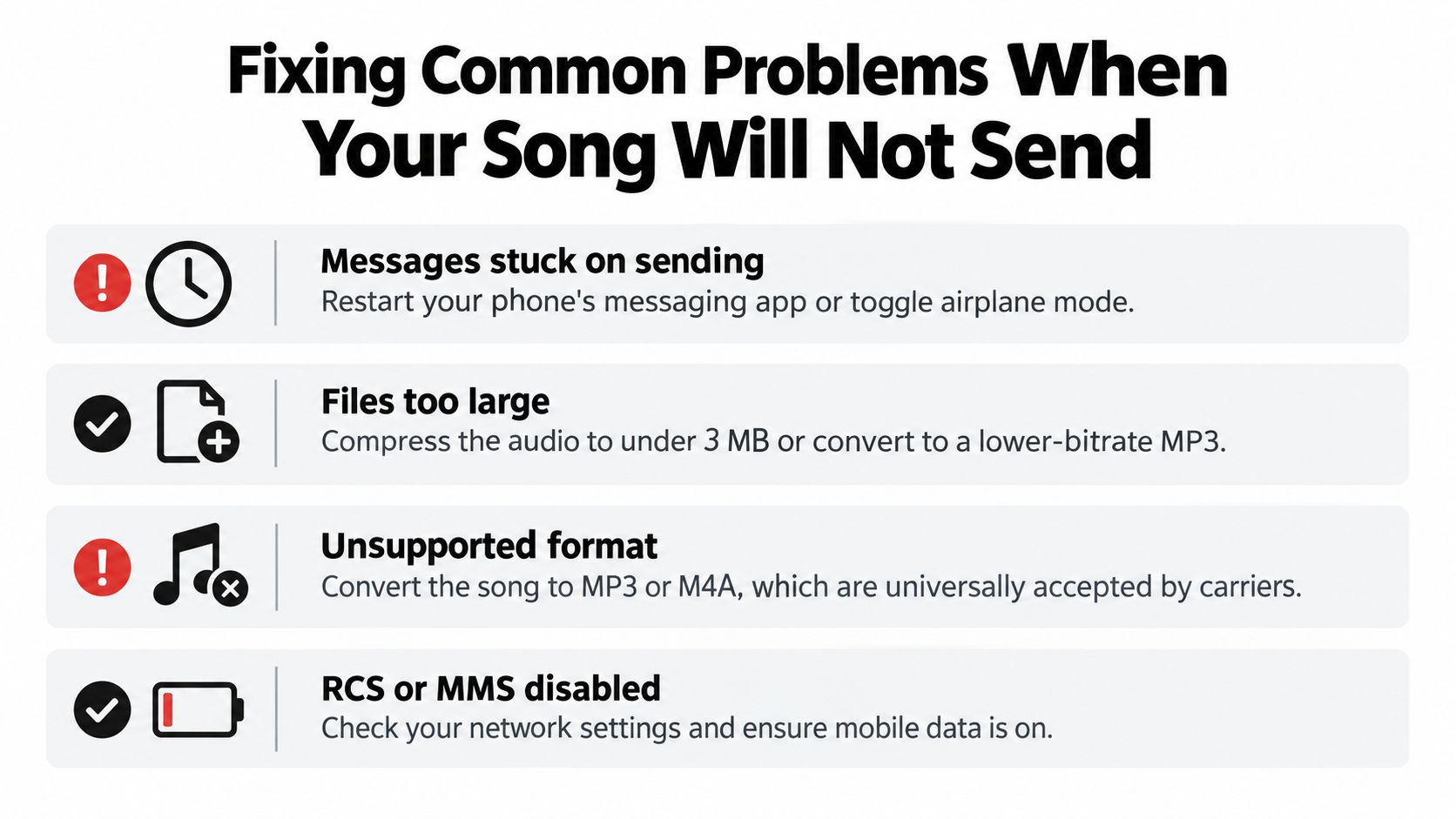
The message hangs on sending
If the spinner never finishes, the issue is often with the messaging session rather than the song itself. Restart the Messages app, toggle airplane mode briefly, and try again with mobile data active if your phone uses MMS or RCS for media delivery.
If it still stalls, don't keep retrying the same file. Send a link instead.
You get a file too large or unsupported warning
This is the classic failure. The one-step fix is to stop trying to send the full file as-is.
Try one of these instead:
- Trim the song to a shorter section.
- Convert it to MP3 or M4A if it's in a bulky or odd format.
- Move the file to cloud storage and text the share link.
Independent guides that focus on this problem point out the same pattern: full tracks are usually much larger than typical MMS limits, so direct texting often isn't suitable for high-quality audio delivery. They also note that RCS can make richer media sharing feel easier, but it still doesn't erase underlying size and compatibility constraints, as explained in AnonSMS's discussion of song sharing limits.
The recipient says the link doesn't open
That's almost always a permissions problem. The file exists, but the access settings block the recipient.
Open the sharing settings in Google Drive, Dropbox, iCloud Drive, or whichever service you used. Change the access to a public or viewer-safe setting, then test it yourself. If you're still stuck, a support page like the OohYeah FAQ is the kind of resource worth keeping around for common music-sharing and access issues in creator workflows.
Broken links waste more time than failed attachments because they look successful on your side. Always test the link as if you were the recipient.
You're mixing up iMessage, MMS, and RCS
This causes a lot of confusion because the conversation still looks like “texting” no matter what protocol is underneath. But richer messaging services don't automatically mean unlimited or universally compatible audio delivery.
If a song matters enough that you can't risk failure, treat text as the delivery vehicle for a link, not the storage container for the music itself.
Smart Ways to Share Music by Text Going Forward
The best long-term habit is simple. Use text to start playback, not to carry large audio files whenever you can avoid it.
For fans, a streaming link is usually the cleanest choice. It opens fast, avoids size limits, and doesn't force you to wrestle with attachment failures. For collaborators who need the actual asset, use a cloud link so they can download the correct file version. For quick previews, a short clip or voice note still works well because it keeps the conversation immediate.
That same thinking applies outside texting too. If you're building music discovery across channels, it helps to learn how creators share music on Instagram so your links, snippets, and release posts stay consistent from DMs to stories to text threads.
The habit worth keeping
Use this rule every time:
- Send a stream link when the person only needs to hear it.
- Send a cloud link when the person needs the file.
- Send a short in-thread clip when speed matters more than fidelity.
If you're an artist building a more direct catalog and fan path, a dedicated music platform can also make your artist music hub easier to share than juggling scattered links every time someone asks for a song.
Texting a song isn't really about forcing the full file through Messages. It's about choosing the right handoff for the moment.
OohYeah gives artists one place to host music, connect with fans, and share tracks without turning every text into a file-size problem. If you want a cleaner way to send listeners to your music and keep more control over how it's heard, visit OohYeah.