How Do I Download My Music Across Every Device
Wondering how do i download my music on web, iOS, or Android? Get clear steps, settings to check, fixes for common issues, and tips for managing files.

September 30, 2026
Music Marketplace Advisor
Buying & SellingYou've finally bought the album you've been streaming for months. You open your phone, search your library, and then pause because there's no obvious button that just says “download.” The music may not be missing. You may be looking in the wrong app, signed into a different account, or dealing with offline access rather than a permanent file.
The answer to how do I download my music depends on where you got it and what you want to do with it. A previous purchase follows a redownload path through a store account. A subscription usually offers app-based offline listening. An artist-direct purchase may give you an actual audio file that you can keep, organize, and back up yourself.
What Downloading Your Music Actually Means in 2026
Most download problems start with one simple misunderstanding. People use “download” to describe several different actions, but the button can mean re-download a purchase, save subscription content for offline playback, or transfer an audio file to your device.
Those paths usually look like this:
- Web and desktop stores: Open the Music app, iTunes for Windows, Amazon Music, or a store such as Bandcamp. Look for Purchased, Library, or an order download page.
- iPhone and iPad: Use the Music app or the separate iTunes Store app. Older purchases may be hidden until you filter the library or check account settings.
- Android: Use the music service's Library or Downloads area. You'll usually see a download switch beside a song, album, or playlist.
The source matters because your account controls what appears. A purchased album can normally be downloaded again after you sign in with the account that bought it. A subscription download is generally an offline copy managed inside the service's app, not a standalone file you can move freely between devices.
Practical rule: Start by asking where the music came from. Don't begin by searching for a generic download button.
If you bought a file directly from an artist, check the purchase email or artist page for a file download control. Direct creator platforms can use a different process from Apple or Amazon. For example, OohYeah's music area presents music through an artist-focused ecosystem rather than a traditional device library.
The rest of the process becomes much easier once you match the source to the correct screen. You're not trying to make one app behave like another. You're locating the account, library, or file delivery method that already belongs to your purchase.
Downloading Music on Web and Desktop
A laptop often gives you the clearest view of your music account. On macOS, open the Music app and sign in with the Apple Account used for the purchase. On Windows, open iTunes if that's where the purchase was made, then look for Purchased or the relevant library view.
A cloud icon beside an album or track usually means the item is available to download again. Click it, or open the More menu beside the item and choose the download command. This is different from a store page with a Download or Export button that transfers a file directly to your hard drive.
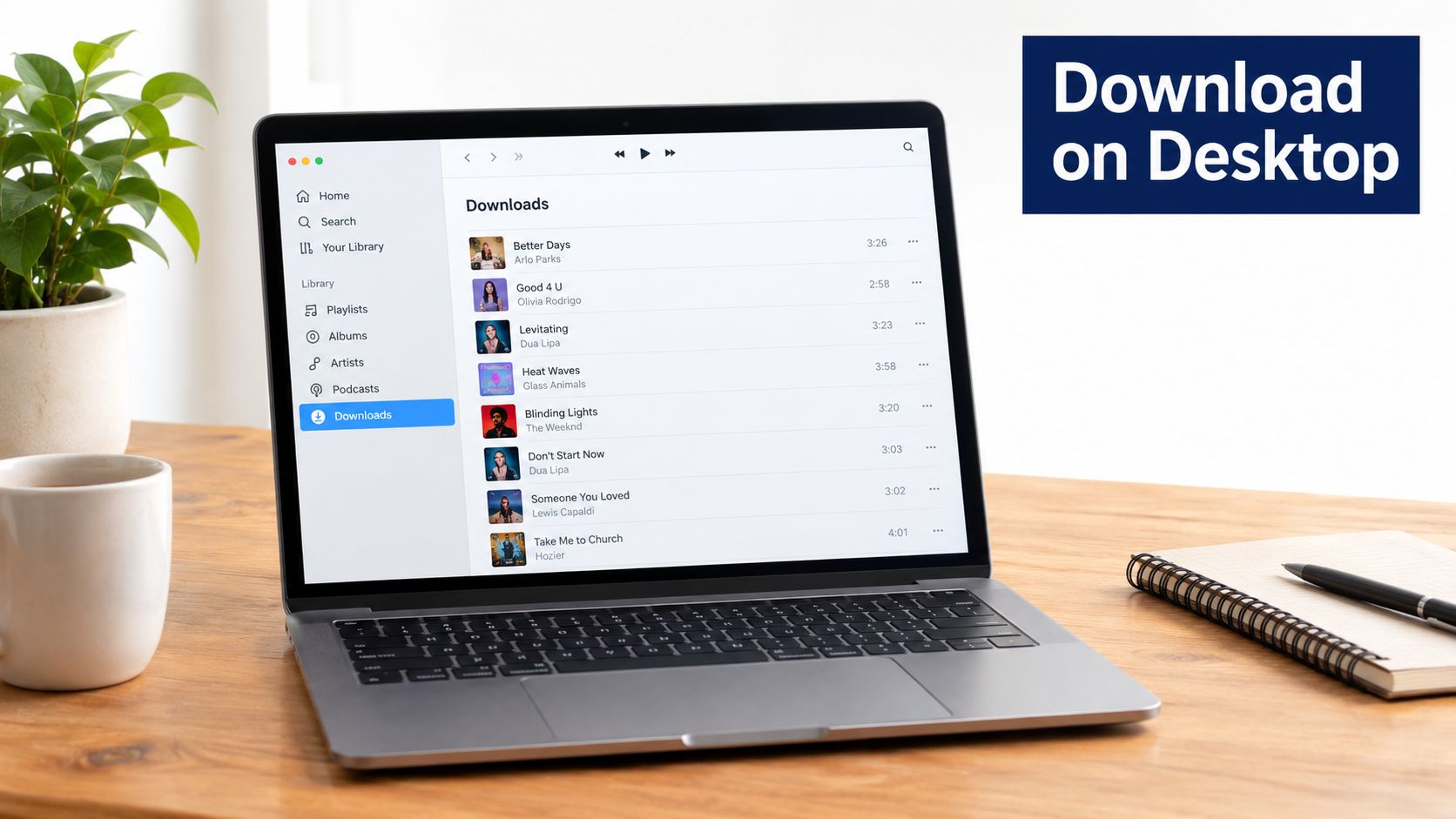
Amazon Music uses a similar pattern. Open the desktop app, sign in, select Library, and switch to Purchased if the music isn't visible in the general collection. Amazon's desktop music download guidance describes downloading individual tracks, albums, or available groups of purchases.
Bandcamp is different because the purchase page or confirmation email commonly leads to a file download. Choose the available format, save the file, and keep the original download archive somewhere safe. A download code may also take you to a browser page where you select the format before saving.
When the button seems to be missing
The most common desktop problem is authorization. If iTunes or the Music app says you need to sign in, or if Purchased appears empty, check the account shown in the app. The computer may not be authorized to play or retrieve purchases from that account.
Sign out only after confirming you know the original account credentials. Then sign in with the Apple Account, Amazon account, or other store account tied to the order. The music usually hasn't disappeared. The app often can't connect the purchase to the current session.
Downloading Music on iPhone and iPad
On an iPhone or iPad, start with the Music app if the album is already associated with your Apple Account. Tap Library, select the relevant category, and look for Purchased or an option such as Not on This iPhone. That filter is useful when the album belongs to your account but isn't currently stored on the device.
Tap the cloud icon beside an album or track to redownload it. If the music was bought through the iTunes Store, the separate iTunes Store app may be the better place to check. Open your account area, choose Purchased, and browse the music associated with that Apple Account.
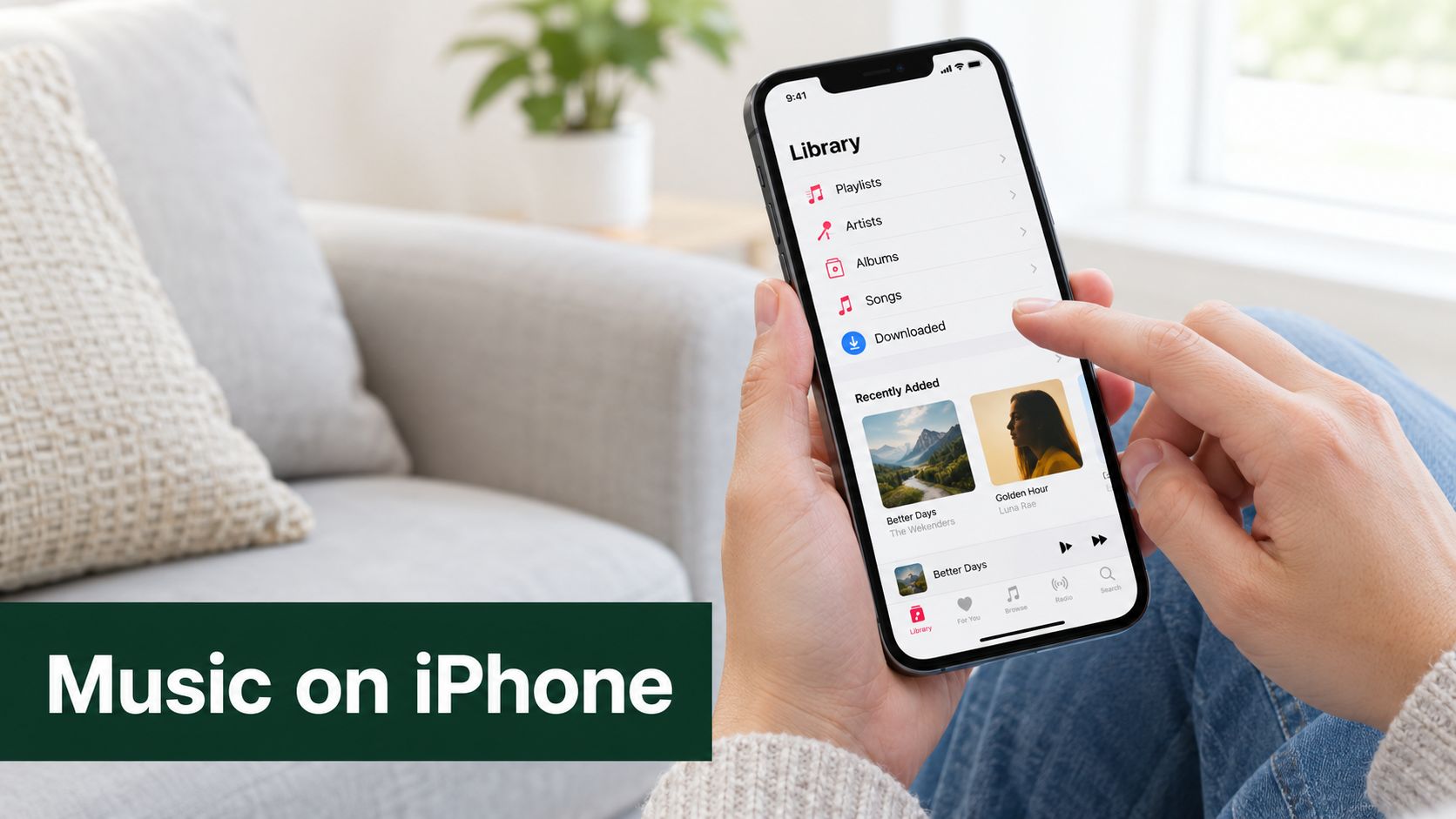
Finding music that looks lost
A missing album may be hidden rather than unavailable. In your Apple Account settings, check Hidden Purchases and review the music listed there. If you find the item, unhide it and return to the purchased library so the redownload control can appear.
Family Sharing can also cause confusion. A family member may need to use their own Apple Account and the family purchase area, rather than expecting your purchases to appear under their personal library. The account that owns the purchase, and the family purchase-sharing settings, determine what can be redownloaded.
Downloads can also pause because the device is restricting mobile data. Check Settings, then Music, and review the cellular-data option. Depending on your preference, enable cellular downloads or leave the setting off and complete the transfer over Wi-Fi.
A playlist download arrow can mean that the app is saving the playlist for offline playback. That isn't always the same as receiving separate, permanent audio files in the Files app. If you need files you can archive or transfer, check whether the original purchase offers a file download outside the subscription library.
Downloading Music on Android
On Android, open the music app and start with your profile photo or account menu. In YouTube Music, look for Library or Downloads, then find the song, album, or playlist you want available offline. A download switch or arrow beside the item starts the process.
Albums and playlists are usually downloaded as groups, while individual tracks can be selected separately. Keep the app open during the first transfer if the download keeps pausing. Android may limit background activity when the phone is conserving power, especially for a large group of files.
Storage and sound settings
Open the app's Settings from the profile menu and look for Downloads or Storage. On a phone with expandable memory, you may be able to choose an SD card instead of internal storage. That choice matters if your phone has limited free space.
A Storage saver setting may reduce audio quality in exchange for smaller downloads. Use the higher-quality option when you're preserving music for careful listening, and use the smaller setting when your priority is fitting more offline content on the phone.
You'll see comparable controls in Spotify, Amazon Music, and SoundCloud. The names can vary, but the pattern is familiar: open the library, choose an album or playlist, and tap Download. Spotify's offline listening feature information also makes clear that offline access is connected to the service and its plan features.
If Android pauses a transfer, check notification permission for the music app. Notifications can show download progress, and restricting them may make background transfers less reliable. Keep the app in the foreground until the first download finishes, then test playback with the phone temporarily offline.
Choosing Where Your Music Comes From
Your choice of music source determines what “downloaded” means after the transfer finishes. A store purchase, a subscription download, and an artist-direct file can all play offline, but they don't provide the same control over the audio.
The legal download market still exists, although it has become a much smaller part of recorded-music revenue in the United States. The RIAA 2024 year-end revenue report records digital downloads at 43% of U.S. recorded-music revenue in 2012, compared with 3% in 2023 and 2% in 2024. It also reports downloaded-music revenue of $434 million in 2023, falling to $336 million in 2024.
Subscription services offer breadth and discovery. You can explore large catalogs and save content for offline playback, but access generally depends on the service, your account, and the applicable subscription rules. A purchased file gives you a clearer archive, while an artist-direct purchase can connect that archive more directly to the creator.
| Model | File Ownership | DRM | Offline Permanence | Artist Compensation |
|---|---|---|---|---|
| Purchased store download | Usually a downloadable purchase tied to the store account | May depend on the store and file format | Stronger, provided the purchase remains available for redownload | Paid through the store's commercial model |
| Subscription offline access | Usually access inside the service's app | Commonly service-controlled | Depends on account and subscription status | Paid through the service's royalty and licensing model |
| Commission-free direct download | A file supplied directly through the artist platform | Can be less restrictive, depending on the delivery terms | Designed for personal archiving when the purchase supplies a true file | Payment goes directly to the artist under the platform's terms |
Audio quality also affects your choice. Archival and production work generally suit lossless or high-resolution files, while casual phone playback may suit a smaller lossy file. For a deeper explanation of preserving audio quality during extraction and handling, Isolate Audio's quality-preserving method offers useful technical context.
A marketplace such as OohYeah's artist marketplace represents the direct-download option. Choose a subscription for discovery, a store purchase for a conventional library, or an artist-direct file when ownership and closer creator support matter most.
Fixing the Most Common Download Problems
A missing download button doesn't automatically mean the music is unavailable. In practice, the control often disappears because the app can't verify the account, the device lacks authorization, or the device can't make room for the files.
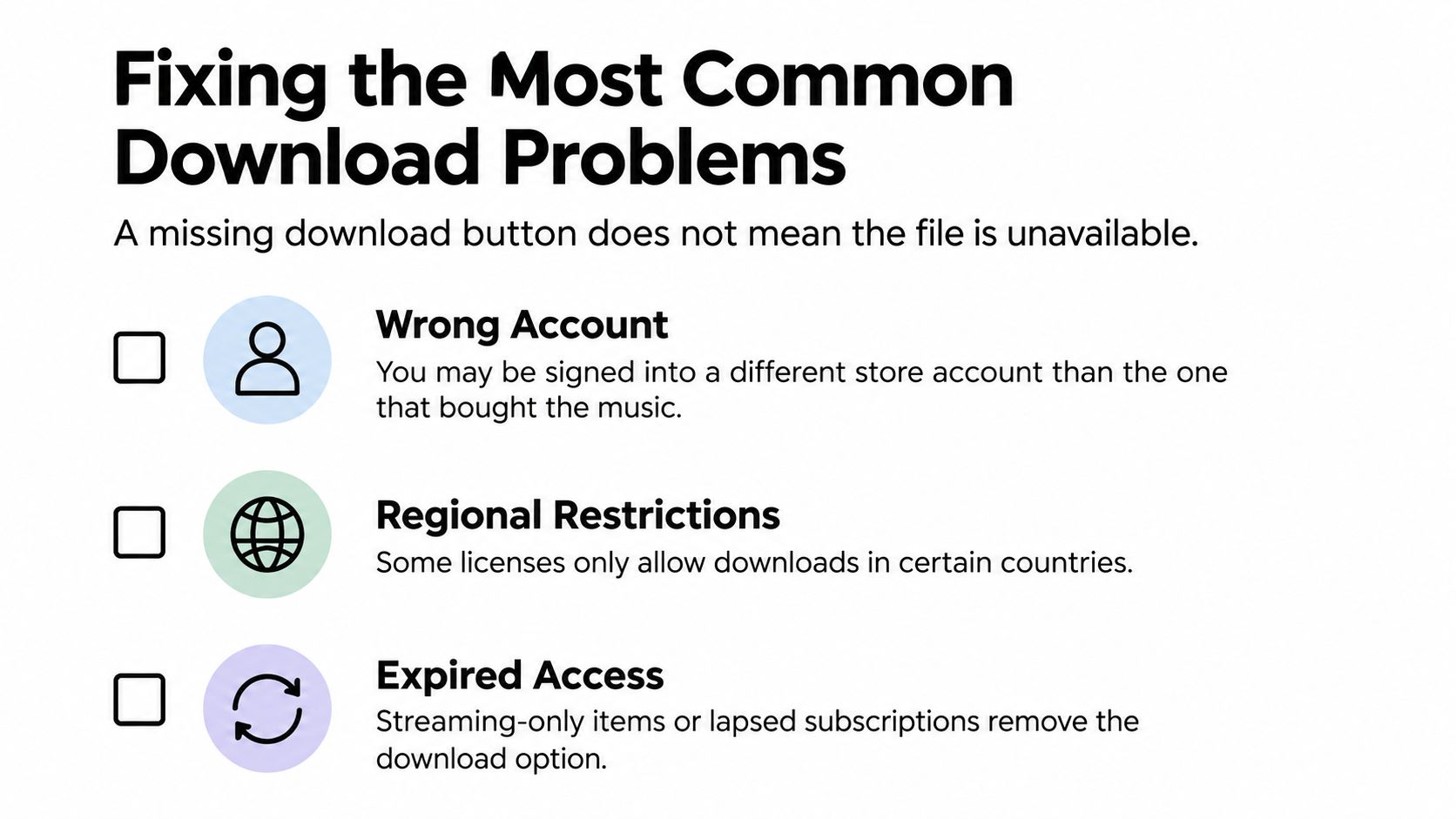
Wrong account
This is the first check because people often have several accounts without realizing which one made the purchase. An Apple Account used for iCloud may differ from the account used for an older iTunes order. Amazon and Google accounts can create the same confusion.
Look at the account email in the app, then compare it with the purchase receipt. If the addresses don't match, sign out and return with the account connected to the original order. Avoid creating a second purchase before checking this, because the new account won't inherit the old library.
Unapproved device
A computer may be signed in but still not authorized to play or retrieve account purchases. Family Sharing can add another layer, since the purchase owner and the person using the device may be different accounts.
Check Account Settings, authorization controls, and Family Sharing purchase access. If the device is new, approve it through the account that owns the music, then reopen Purchased. The download control may appear only after that verification succeeds.
Storage full
A device can show a download control and still fail during transfer because there isn't enough free space. Clear temporary files, remove downloads you no longer need, offload unused apps, or select an SD card when the Android device supports it.
Fast diagnosis: Wrong account means switch to the purchase account. Unapproved device means authorize it and reopen the library. Full storage means free space before trying the download again.
Also check the smaller blockers. Confirm that cellular downloads are allowed if you're not using Wi-Fi, review Hidden Purchases, and verify that Family Sharing includes purchase sharing. For platform-specific questions, the OohYeah FAQ is another place to look when an artist-direct download doesn't behave like a store purchase.
The infographic's third example, expired access, matters for subscription libraries. A song that was available offline can disappear when the subscription ends or when the service no longer grants access to that item. That's different from a purchased file, which belongs in the account's purchase history or original delivery email.
Managing and Backing Up Your Downloaded Files
The download is only the beginning if you want a dependable music collection. Once files reach your computer, sort them by format so you know what you're working with. A simple structure might include Music/MP3, Music/WAV, Music/FLAC, and a separate Music/Covers folder for artwork you want to preserve outside the audio file.
Use a consistent filename such as Artist, Track Title, Year. Don't rename the original ZIP archive from an artist or store until you've confirmed that the extracted files work. Keeping that untouched archive gives you a clean starting point if metadata becomes messy or you need to restore the original delivery.
A practical file checklist
- Format: Keep lossless files separate from compressed MP3 or similar files.
- Folders: Organize by artist and album inside the main Music library.
- Names: Use the same artist, title, and year pattern throughout the collection.
- Artwork: Preserve embedded cover art and keep separate image files when they matter.
- Backups: Copy the finished library to a cloud drive or NAS on a regular schedule.
- External storage: Use an external SSD or another dedicated location for the working archive.
Storage capacity affects how much of this library you can keep on a phone. If you're deciding whether your current device can hold more offline music, this guide to comparing iPhone storage sizes can help you evaluate the available space before moving a collection.
A backup should be separate from the device you use every day. If your laptop fails, a second copy on an external drive or network storage gives you a recovery path. A cloud copy adds another layer, especially for purchases that are difficult to locate again.
Artist-direct downloads change the maintenance question. When a creator supplies a file through a one-time purchase, you can manage it like part of your own archive instead of depending entirely on a store's redownload screen or subscription status. That makes the final task straightforward: verify the file, name it clearly, place it in the right folder, and back it up.
OohYeah lets artists sell digital tracks and albums directly to supporters through a music-focused platform, while fans can access commission-free downloads and artist content. Visit OohYeah to explore a more direct way to get music, keep your files organized, and support creators through the same purchase.