How to test used DJ gear: jog wheels, faders, ports, and licenses
Test used DJ equipment before buying: check jog wheels, faders, ports, audio outputs, and software licenses. Know what passes and when to walk away.
October 27, 2026
FRANKLY with Frank Lee
To test used DJ equipment before buying, play audio through it, check every jog wheel and fader, test the ports you need, and verify software access on your own account. A working display does not prove the audio path works, and a seller’s software login does not prove a license transfers. Buy only after the exact unit passes the checks your setup depends on.
- Test used DJ equipment before buying with your own headphones, known-good cables, and compatible playback sources.
- Check jog wheels, faders, audio outputs, and USB connections separately; one successful demo does not clear everything.
- Verify software licenses independently of the seller’s account before committing.
- OohYeah connects music-gear buyers and sellers; document the unit’s condition and test results before buying.
Why this matters
Used DJ gear has several systems to check: physical controls, audio connections, and software compatibility. A controller can send control messages while its headphone output fails. A mixer can pass music until you move a worn channel fader.
For a 2026 purchase, check the exact model against your intended computer, operating system, and DJ application. Start with how to assess whether a used instrument listing is legit, then request a functional demonstration of the actual unit—not footage of another example.
How do you test used DJ gear: jog wheels, faders, ports, and licenses?
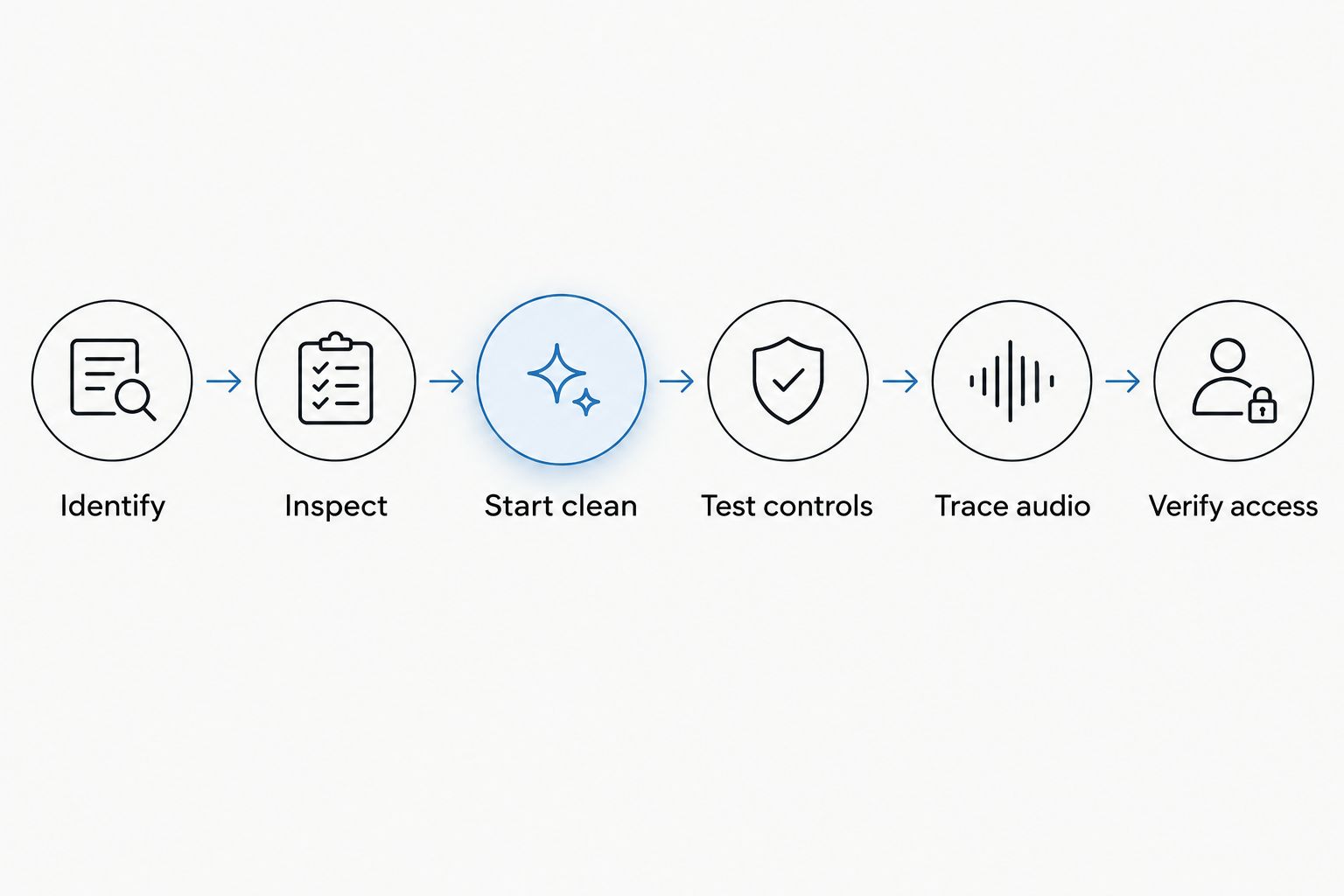
Work through the signal chain in order. Establish reliable power and playback first, then isolate controls, connections, and software access so you can identify what causes a failure.
- Identify the unit. Match its model, rear-panel connections, and serial number to the listing and manufacturer documentation.
- Inspect it unplugged. Look for corrosion, damaged sockets, sticky controls, missing parts, and evidence of spills.
- Start clean. Use the specified power supply, compatible software, and known-good cables.
- Test controls. Check jog wheels, faders, knobs, buttons, and pads individually.
- Trace audio. Listen through each input and output you intend to use, including headphone cueing.
- Verify ownership access. Confirm software requirements, transfer rules, and included accessories before paying.
Bring a test setup you understand
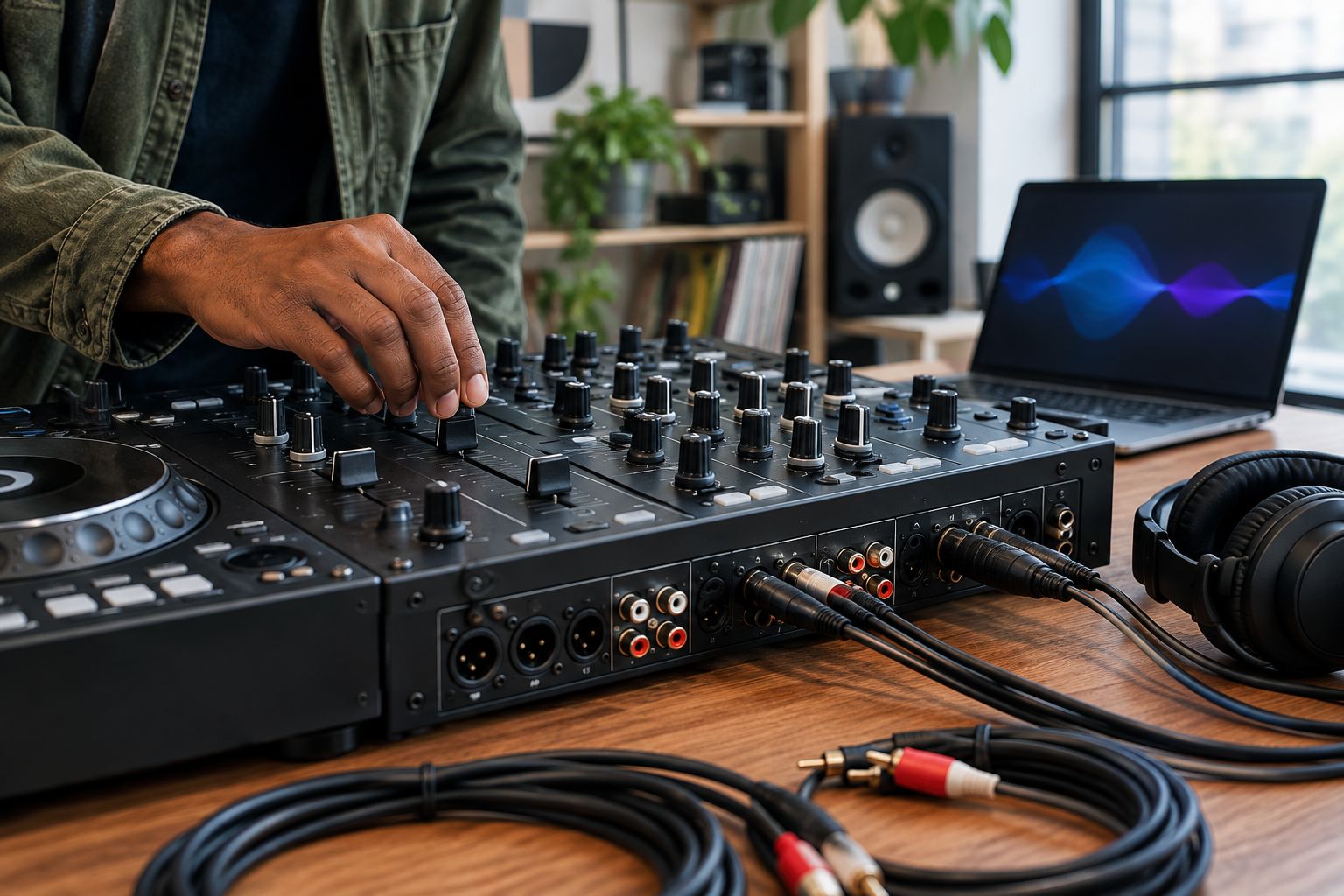
Bring your headphones, compatible audio cables, a known-good USB cable where relevant, and a playback source you know works. If the unit requires a computer, bring your own compatible laptop rather than relying entirely on the seller’s installation.
Keep playback levels low at first. Switch off or mute connected equipment before changing cables, and never open mains-powered equipment during a buying inspection. Stop immediately if you find exposed wiring, a damaged power inlet, smoke, or a burning smell.
Inspect the chassis before powering up
Check the underside, connector panel, screw heads, and spaces around faders. Sticky residue, corrosion, or an unevenly seated socket deserves a direct question about spills and repairs. Cosmetic wear alone does not establish an electrical fault.
Ask what was repaired and request any available service paperwork. Do not treat a clean exterior as proof of a clean interior, and do not take the unit apart without permission. Photograph existing damage with the seller’s agreement.
Test jog wheels in every supported mode
Load a familiar track. Test each jog wheel separately with matching settings so a sensitivity difference does not look like a fault.
Where supported, check the rim for pitch nudging and the top surface for touch-sensitive scratching. Confirm that playback responds when you touch the platter and resumes correctly when you release it. Mechanical and touch-sensitive jog designs behave differently, so compare the response with the model’s manual.
Rotate slowly and then make ordinary performance movements. Listen for scraping and watch for missed movements, unexpected direction changes, or a touch state that stays engaged after release. Check adjustable tension and sensitivity only if the model provides them.
A jog wheel passes when its physical movement and playback response agree consistently in the modes you will use. Free-spinning duration is not a universal quality test.
Test channel faders, pitch faders, and the crossfader
Run steady audio and move each channel fader through its full travel. Listen for crackles, abrupt level changes, and dropouts. Pause at different positions; the level should not jump while the control stays still.
For a controller, watch the software control as well as listening. Move 1 control at a time so you can match the physical movement to the screen. A jumping on-screen fader helps identify an input problem, but it does not establish the repair required.
Test the crossfader with its channel assignments and curve settings confirmed. A steep scratch curve intentionally behaves differently from a gradual mixing curve. Check the pitch fader through its range and around its center; use the application’s pickup or soft-takeover behavior as documented rather than assuming every delayed response is a fault.
Check knobs, encoders, pads, and transport buttons
Turn gain and EQ controls while audio plays at a safe level. Check filter controls against their documented behavior; a centered filter setting is not a universal bypass on every device.
An encoder is a rotary control that sends changes rather than necessarily pointing to a fixed value. Turn it slowly in both directions and watch for skipped or reversed changes. Test push-to-select behavior where fitted.
Check play, cue, sync, loop, browse, and performance-pad functions that the unit supports. Confirm modifier buttons too: a working pad does not prove its shifted function works. Separate unsupported software mappings from actual hardware failures.
Test ports with a complete audio route
Inspect connectors without forcing them. Insert the correct cable and check that it seats normally. Ordinary cable handling should not interrupt playback; deliberately bending a socket is not a useful test.
Use these checks as a pass-or-stop sheet:
| Test area | Evidence to look for | Stop and investigate |
|---|---|---|
| USB connection | Stable device recognition and playback | Disconnects with a known-good cable |
| Line inputs | Clean playback through the selected channel | Missing audio or distortion with correct gain settings |
| Phono inputs, if fitted | Correct operation with a suitable turntable source | Hum or distortion unresolved by correct connections and grounding |
| Master and booth outputs | Clean audio from each required output | A missing side or intermittent socket |
| Headphone cue | Correct channel selection and cue/master blend | Missing audio or an unreliable headphone jack |
| Microphone input, if fitted | Clear signal with a compatible microphone | Dropouts or persistent noise after checking the source |
For stereo paths, confirm 2 audio channels: left and right. A familiar track with clear stereo content helps, but independent channel checks are clearer than assuming that sound from both speakers proves correct routing.
If the unit has 2 headphone sockets, test each socket separately. One working socket does not clear the other. For standalone players, test supported media loading, browsing, playback, cueing, and safe removal using the manufacturer’s procedure.
Verify software access without the seller’s login
For a 2026 computer-based setup, check the exact hardware model, operating system version, application version, and required driver together. Compatibility is a combination, not a badge on the box.
Establish which software-access arrangement applies. Some hardware enables supported functions while connected; other functions depend on a separate license or account entitlement. Verify the manufacturer’s current rules for the exact unit and application.
Ask the seller to identify any included license and its permitted transfer process. A screenshot of activated software proves access on that account, not access on yours. A bundled code is not proof that the code remains redeemable.
Do not accept shared login credentials as a license transfer. Confirm what will work under your own account, and record any unresolved software requirement before deciding.
Why used DJ equipment test results vary
A failed check needs isolation before diagnosis. These factors change what you hear or see:
- Control settings: Crossfader assignment, curve, jog sensitivity, and channel routing change normal behavior.
- Source and cable condition: A damaged cable or faulty playback source can imitate a failed port.
- Input selection: Line, phono, microphone, and USB routes require the correct source and settings.
- Gain staging: Excessive input gain can cause distortion without a damaged output stage.
- Software compatibility: Drivers, application versions, operating systems, and mappings affect computer-based operation.
- Power and connections: An unsuitable supply, loose connector, or unstable USB path prevents a reliable test.
Change one variable, then repeat the same check. If replacing the cable resolves the symptom, document that result rather than declaring the socket broken. If the symptom remains unexplained, treat the unit as unverified—not passed.
Can you test used DJ equipment remotely in 2026?
Yes, you can request remote functional evidence, but it does not replace testing the delivered unit. Ask for one continuous recording that identifies the actual hardware, shows the connections, and demonstrates the controls and audio paths you need.
A useful video shows jog-wheel response, full fader travel, headphone cue selection, and computer recognition where applicable. Ask for visible software movement alongside audible playback. A recording made only through the master output cannot establish that the headphone socket works.
Keep the listing, messages, and agreed condition description. Check the applicable purchase and return terms before committing; do not assume that a marketplace provides a particular inspection window or remedy.
Should you buy used DJ gear with a fault?
Buy a faulty unit only if you knowingly want a repair project and have established the fault’s implications. Do not turn an unexplained dropout into a confident diagnosis such as “just needs cleaning.”
For a performance setup, prioritize repeatable operation over appearance. Test the functions your set depends on, including backup playback routes if you plan to use them. A working master output does not compensate for a failed cue circuit when you mix in headphones.
Skip equipment with unresolved power faults, intermittent connections, or software access that the seller cannot substantiate. Let a qualified technician assess electrical or internal repair work.
Buy gear. Keep the evidence.
OohYeah is best for musicians who want a music-gear marketplace; hands-on testing still decides whether a unit fits your setup. Use the test results to ask specific questions, not just “Does everything work?”
Selling instead? Create an OohYeah account and list your gear with clear photos, exact model details, disclosed faults, and a description of the functions you tested. OohYeah charges zero seller commissions. Keep software-transfer claims separate from hardware-condition claims so buyers know exactly what you are offering.
List your DJ gear
Create an account, describe the condition, and list your gear with zero seller commissions.
FAQ
What's the most important way to test used DJ equipment before buying?
Test the complete playback path, including controls, audio outputs, and headphone cueing. Use known-good sources and cables so an accessory fault does not confuse the result.
How do I know whether a used jog wheel is faulty?
A jog wheel needs investigation when movement or touch produces inconsistent playback responses under the correct settings. Check the model’s supported modes and sensitivity settings before diagnosing hardware damage.
Does a crackling fader mean I should reject the mixer?
A crackling fader means the mixer has not passed that test. Confirm the source and gain settings, then have the fault assessed rather than assuming cleaning will fix it.
Can I use the seller's DJ software account after buying?
Do not rely on the seller’s account as your software entitlement. Confirm hardware-enabled access or complete the software provider’s permitted license-transfer process.
Is a USB connection enough to prove a controller works?
No. USB recognition does not prove that jog wheels, controls, the audio interface, or headphone outputs work; test those functions separately.
What should I check when buying used DJ gear in 2026?
Check physical condition, control response, audio routing, ports, and compatibility with your intended 2026 setup. Verify software access independently of the seller’s installation.
Can I sell DJ gear with a known fault on a music marketplace?
Describe known faults explicitly and check the marketplace’s current listing rules before posting. Include what works, what failed testing, and any unresolved software-transfer requirements.
One last thing
Test the quietest part of the setup: headphone cueing. Select each channel, check the cue/master blend where fitted, and listen to both sides of your headphones. A convincing room-speaker demonstration can leave this entire path untested.
Before handing over payment, write a short pass/fail note against every connection and control you checked. Photograph the serial number and agreed accessories. Keep the evidence with the purchase record—not in your memory.