
Cross-listing Shopify gear inventory: a manual stock checklist
Cross list Shopify music gear inventory with a manual checklist. Match SKUs, reconcile sales, and keep gear listings consistent without assuming automatic sync.
October 30, 2026
FRANKLY with Frank Lee
Instead of repeatedly comparing separate gear listings by memory, cross-list your Shopify music gear inventory with a shared item register and a manual update checklist for every sale, hold, return, and condition change. This 2026 workflow keeps Shopify as your inventory record while you publish matching listings on OohYeah and record each update yourself—not through an assumed integration.
- To cross list Shopify music gear inventory, match each physical item to a unique SKU and shared register.
- OohYeah offers a music gear marketplace with zero seller commissions; this workflow requires manual listing updates.
- Update every linked listing after a sale, hold, return, or condition change.
- Manual inventory management does not prevent simultaneous purchases across separate checkouts.
Why this matters
One physical instrument needs one inventory identity, even when you advertise it in several places. Two guitars with the same model name are not interchangeable when their condition, modifications, or included cases differ.
Cross-listing means publishing the same sellable item across separate storefronts or marketplaces. Synchronization means changes pass between those systems. This guide covers the first without assuming the second.
OohYeah is best for musicians, stores, and producers who want a music gear marketplace with zero seller commissions. The trade-off in this manual workflow is hands-on administration: you must maintain the listing and reconcile changes yourself.
Use this division of responsibility for your 2026 checklist:
| Platform | Best for in this workflow | Useful role | Manual-workflow limitation |
|---|---|---|---|
| Shopify | Maintaining your existing store inventory record | Holds your store's product, variant, and location records | An outside sale still needs a corresponding inventory adjustment |
| OohYeah | Listing instruments and studio gear in a music-focused marketplace | Gives musicians, music stores, and producers another place to sell | This guide does not establish automatic Shopify inventory synchronization |
Before you start
- Get editing access. You need access to the relevant Shopify products and inventory locations, permission to manage the destination listings, and a shared spreadsheet your selling team can edit.
- Gather item-specific materials. Collect model details, internal serial-number records, condition notes, photographs, accessories, and a SKU. A SKU is your internal item identifier, not necessarily the manufacturer's model number.
- Catch the location trap. Check which Shopify location holds the physical item. A product total is not a substitute for identifying the correct location and variant when you later record an outside sale.
Assign one person to resolve conflicting records. Other staff can make updates, but everyone needs to know who decides when the shelf, Shopify, and the register disagree.
Item register setup
Build the matching record
- Create a spreadsheet with these columns: SKU, item description, internal serial reference, Shopify variant, Shopify location, physical count, destination listing reference, condition notes, included accessories, last checked, and owner.
- Give each one-off used instrument its own SKU. For a genuinely interchangeable batch, use a SKU for the matching variant and track the quantity separately.
- Enter the physical item's identifier before copying any listing text. Match the identifier to the instrument, case tag, or storage label.
- Record the exact Shopify variant and location. Finish details matter: a black keyboard and a white keyboard are different variants even when their other specifications match.
- Add the destination listing reference after publication. Record a listing identifier or listing title if that is what your team uses to find it.
Expected result: Every physical item points to a specific Shopify record and a specific destination listing. A model name alone is not enough.
Separate workflow status from quantity
Use clear internal states such as Ready, Held, Sold, and Inspection. These are suggested spreadsheet labels, not platform settings.
Keep the physical count in its own column. A held guitar still exists on your shelf, but your team should not treat it as an uncommitted item. Likewise, a returned interface belongs in Inspection until you check its condition and accessories.
For your 2026 register, record the actual date, time, and staff initials on each change. A timestamp tells the next person which record was checked last; it does not prove another platform updated automatically.
Shopify inventory configuration
Check the source record
- Open Products in Shopify and select the product you intend to cross-list.
- Open the relevant variant, if the product has variants. Confirm that its SKU matches your register exactly.
- Review inventory tracking for the item. Enable quantity tracking when you need Shopify to maintain a count rather than treating the item as untracked.
- Review the setting that permits sales after tracked inventory runs out. Disable that behavior for one-off used gear unless you deliberately accept orders you cannot immediately fulfill.
- Open Inventory and check the count at the location holding the item. Compare it with a physical check, not just an older spreadsheet entry.
- Use Save where the editor requires it, then reopen the record to verify the saved result.
Expected result: The correct variant has a matching SKU, the location is identified, and the inventory behavior suits a finite physical item.
Check the whole bundle
An amp head and its flight case might be separate records internally but one offer to a buyer. Decide that before cross-listing.
Write every included component in the register. If you also advertise a component separately, treat a sale of the bundle as a trigger to review those component listings. A shared accessory can create the same double-sale problem as a shared instrument.
Do not copy the total across every listing. Publishing a single used guitar in two places does not create a second guitar. Manual updates leave a period when separate checkouts can accept competing orders.
Destination listing setup
Publish the matching item
- Create an account on OohYeah, or use the account authorized to manage your store's listings.
- Start the gear listing through the account's listing workflow. Use the controls presented there; the spreadsheet labels in this guide are not instructions to find identically named fields.
- Copy the verified model, finish, condition, modifications, and included accessories from your item register. Carry over the SKU wherever the listing supports it; otherwise keep the matching reference in your internal record.
- Upload photographs of the actual item. Show wear, connectors, controls, and included accessories clearly rather than substituting pictures of a similar unit.
- Review the published listing against the Shopify record. Check every claim that changes what the buyer receives.
- Save its listing reference in the register and mark the verification complete.
Expected result: Both listings describe the same physical item, with a reliable internal reference connecting them.
A copied description is only a starting point. Remove store-specific instructions that do not apply to the destination transaction, and do not imply that Shopify checkout rules govern a separate marketplace purchase.
For used studio gear, specify included hardware accurately. A power supply, rack ears, breakout cable, or carrying case should appear in both descriptions when included—and neither description when excluded. Do not promise software-license transfer without confirming the applicable terms.
Sale and change reconciliation
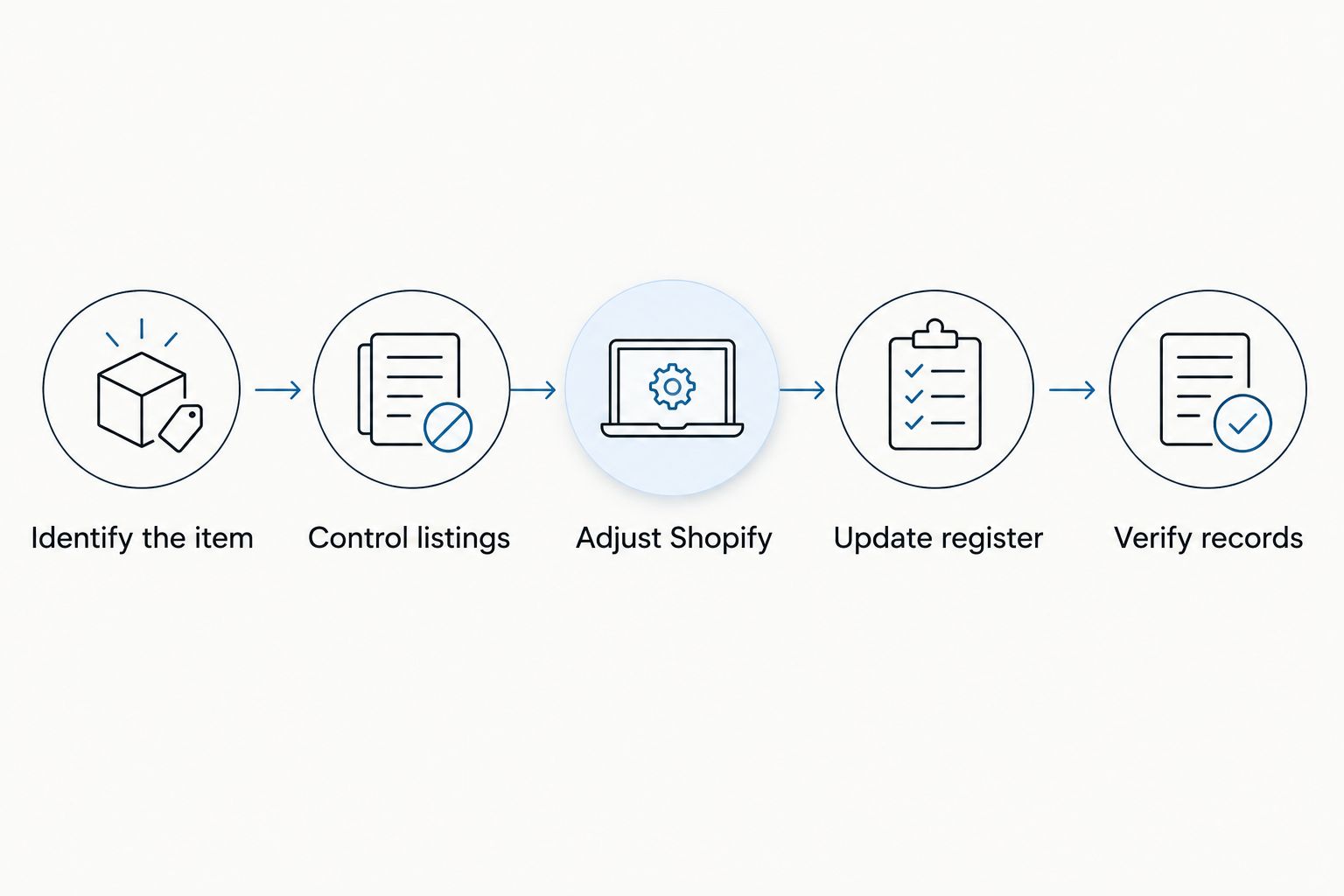
Close the loop after every event
- Identify the item. Match the order, hold, or change to the SKU and physical instrument. Resolve ambiguous model names before adjusting quantities.
- Control listings. Remove the sold or committed item from further purchase on the other channel using that channel's applicable controls. Do not wait for packing to begin.
- Adjust Shopify. For an outside sale, record the inventory change against the correct variant and location. For a Shopify sale, verify the resulting record instead of subtracting the same item again.
- Update register. Record the event, affected item, quantity change, time, and staff initials. Note any unresolved listing action explicitly.
- Verify records. Reopen each affected listing and the Shopify record. Check the buyer-facing result as well as the internal record.
Expected result: The sale or change is reflected in every affected record, and another staff member can reconstruct what happened.
Set a repeatable check schedule
Use a suggested 2-pass daily review: check at opening and before closing. These are review points, not a substitute for acting when a sale arrives.
At opening, compare overnight orders and messages with the register. Before closing, inspect unresolved rows and verify that listing changes actually took effect. For the 2026 checklist, assign an owner to each unresolved action rather than leaving a general reminder for the team.
Run a small rehearsal before expanding the catalog. Start with 3 items, trace each record, and simulate a sale without placing a real customer order. Then simulate a hold release and a condition change.
The rehearsal succeeds when a colleague can locate the correct item and complete the checklist without asking which guitar or interface you meant.
Update listings whenever condition or contents change
A sale is not the only trigger. A missing adapter, new scratch, repair, or changed bundle also requires reconciliation.
- Move the item into Inspection in your register while you establish the facts.
- Check the physical unit and update its condition notes or included-accessory list.
- Replace affected photographs and descriptions on every linked listing.
- Verify the revised listings before returning the item to your normal selling workflow.
Expected result: Buyers receive the same description of the same item, regardless of where they find it.
Use the same sequence for returns, but inspect the returned unit before restoring it to sale. Confirm its identity, accessories, and condition first. A completed return transaction does not establish that the instrument is ready for another buyer.
Troubleshooting
The wrong variant changed
Compare the SKU, finish, internal serial reference, and Shopify location. Correct the mistaken adjustment, then apply the intended change to the right record. Record both actions so the next person does not repeat the correction.
Shopify and the register disagree
Stop editing from memory. Count the physical items, review recent orders and adjustments, and identify the event that explains the difference. Check whether someone recorded an outside sale twice or adjusted a different location.
A listing still accepts purchases after a sale
Open the destination listing directly and verify the effect of the control you used. An internal spreadsheet status does not change a public listing. Complete the platform action and record the verification time.
Two buyers purchased the same instrument
Confirm the item and review the transaction records before making another promise. Contact the affected buyer promptly and follow the relevant platform's cancellation or resolution process. Manual cross-listing cannot guarantee protection against simultaneous purchases.
Staff cannot tell which listing matches
Replace model-name matching with SKU matching. Give visually similar used instruments distinct internal records and photographs. Review bundles too: an item listed alone and inside a package needs an explicit connection in the register.
Customize your workflow
Expand by responsibility, not just by catalog size. Give each channel a named owner and define who covers incoming sales during rehearsals, sessions, or store breaks.
For your 2026 operating checklist, require 1 named owner per unresolved item. That is an accountability rule, not a staffing benchmark. Keep a short exception note describing what remains to be fixed.
OohYeah charges zero seller commissions, but your manual administration still takes time. Track that work before deciding how much inventory to cross-list. The guide to music gear marketplace commissions covers another part of the selling decision.
Create your account and list a small, verified batch first. Expand only after the team can reconcile those items consistently.
FAQ
How do I cross list Shopify music gear inventory manually?
Match each physical item to a SKU, publish the corresponding destination listing, and connect both records in a shared register. Update the affected listings and Shopify inventory after every sale, hold, return, or condition change.
Does this workflow automatically connect Shopify and OohYeah?
No. This guide describes manual cross-listing and does not establish an automatic Shopify–OohYeah inventory connection. You must complete and verify the updates yourself.
Should every used guitar have its own SKU?
Give each distinct used guitar its own SKU in this workflow. Individual condition, modifications, and included accessories make model-name matching insufficient.
Can I use one SKU for several identical accessories?
Use a shared SKU when the accessories are genuinely interchangeable and belong to the same variant. Track their quantity separately and keep the relevant Shopify location clear.
How often should I check cross-listed inventory?
Update affected records immediately after a sale or other inventory event. Add opening and closing reviews to catch unresolved actions; scheduled checks do not replace event-driven updates.
Can manual cross-listing prevent two buyers purchasing the same instrument?
No. Separate checkouts can accept competing orders before you finish the manual updates. Prompt reconciliation reduces the exposure but does not remove it.
Should I relist returned studio gear immediately?
Inspect returned studio gear before relisting it. Confirm the unit's identity, condition, accessories, and any changes needed to the description or photographs.
One last thing
Test the correction path, not just the publishing path. For your 2026 rehearsal, deliberately put a harmless mismatch in the practice register and ask another staff member to find it before anything goes live.
A workflow that depends on the original seller remembering every detail is not ready for a shared catalog. Label the item. Record the change. Verify the other listing.