How to Share Your Spotify Playlist with Anyone
Discover how to share your Spotify playlist in seconds. This guide covers sharing on social media, websites, and even in person using links, codes, and more.
November 14, 2025
Music Marketplace Advisor
Buying & SellingSharing your perfectly curated Spotify playlist is incredibly easy. Just navigate to the playlist you want to send, tap the three-dot menu (...), and hit 'Share.' From there, you can copy the link or post it directly to your favorite social media apps.
The best part? This works seamlessly across the desktop app, iOS, and Android, so you can send your tunes through pretty much any messaging app or platform out there.
Why Sharing Music Connects Us

A shared playlist is so much more than a list of songs. It’s the modern-day mixtape—a way to bottle up a specific feeling and send it straight to a friend. Think about it: you're not just sharing music, you're curating the perfect road trip soundtrack or introducing a coworker to an artist you know they'll love. It creates a unique connection that words alone often can't.
This guide goes beyond the simple "how-to" and explores why this simple act is so powerful. It's about setting a mood, defining a moment, and even shaping your personal brand through your musical taste.
The Social Power of a Playlist
In a world full of digital noise, music still cuts through as a universal language. Your playlists can do a lot of heavy lifting in your social life, strengthening your connections in a few key ways:
- Forging Personal Bonds: Sending a "thinking of you" playlist is one of the most personal gestures you can make.
- Curating an Event: Creating and sharing the playlist for a party or dinner helps set the atmosphere before guests even walk through the door.
- Becoming a Tastemaker: Introducing friends to an amazing underground artist instantly makes you their trusted source for new music.
The social aspect of playlist sharing has absolutely exploded. Sharing music on social platforms saw a 47% year-over-year jump, thanks to slick integrations with apps like Instagram and TikTok. This shift shows that we aren't just listening anymore; we're actively curating and sharing. Nothing proves this more than the 150 million people who shared their personalized Spotify Wrapped results. You can read more about the growth of Spotify user engagement on SQ Magazine.
Sharing music is an extension of our identity. A well-crafted playlist tells a story about who we are, what we’re feeling, and what we value, creating an immediate and authentic bond with the listener.
From a simple link to a scannable QR code, we're about to cover every method you can use. This is your complete playbook for getting your sound out into the world.
Sending a Direct Link to Your Playlist
Sometimes, the simplest approach is the best one. Sending a direct link is easily the fastest way to get your Spotify playlist into someone else's hands. It cuts through the noise of social media feeds and delivers your hand-picked tunes directly, whether you're sending it via text, email, or a messaging app like WhatsApp.
The great thing is that this method works flawlessly across every version of Spotify. The process is almost identical on the desktop app, iPhone, or Android, so you won't have to relearn the steps when you switch devices.
Finding the Share Menu
First things first, you need to find the link. Open up the playlist you want to share.
On both mobile and desktop, look for the three-dot icon (...). It’s usually hanging out right next to the big green play button. Think of this as your command center for all playlist actions.
Once you click or tap on it, a menu will pop up. Just find the "Share" option, and from there, your most direct choice is "Copy Link." Tapping this instantly copies the playlist's unique URL to your clipboard, ready for you to paste wherever you need it.
For a quick breakdown, here’s exactly where to look on each platform.
Finding the Playlist Share Link
| Device | Where to Find the Share Menu | Key Action |
|---|---|---|
| Desktop App | The three-dot icon (...) below the playlist title | Click "Share" > "Copy link to playlist" |
| iOS App | The three-dot icon (...) under the playlist name | Tap "Share" > "Copy Link" |
| Android App | The three-dot icon (...) in the top-right corner | Tap "Share" > "Copy Link" |
This table should make it easy to find what you're looking for, no matter what device you're using at the moment.
Pro Tip: A common question I get is whether a playlist has to be public to be shared. The answer is no. You can absolutely share a private playlist with a direct link. The key difference is that only people with that specific link can listen—it won't ever show up on your public profile or in Spotify’s search results.
Public vs. Private Playlist Links
It's really important to understand how your playlist's privacy settings affect who can listen.
When you share a public playlist, anyone with the link can listen, follow it, and see it on your Spotify profile. This is exactly what you want if you're trying to build a following or show off your great taste in music. In fact, creating compelling public playlists is a core part of learning how to attract fans to your music profiles.
On the other hand, sending a link to a private playlist creates a much more exclusive experience. Only the people you give that specific link to can access and listen to the tracks. It’s the perfect solution for personal mixes, like a surprise anniversary playlist for your partner or a "for your ears only" set of songs for a close friend.
Making Your Playlist Go Viral on Social Media
Dropping a link on social media is easy. Getting people to actually click, listen, and share? That’s where the real work begins. Sharing your Spotify playlist effectively isn't about spamming your followers; it's about starting a conversation and tailoring your approach to each platform, whether it's Instagram, Facebook, or X. The aim is to create something interactive that stops the endless scroll.
Take Instagram Stories, for example. The official Spotify sticker is one of the best tools in your arsenal. When you share a track from your playlist using the sticker, it lets your followers hear a quick preview and tap right through to Spotify. That seamless experience is gold for grabbing someone's attention on the fly.
Crafting Engaging Social Posts
You have to give people a reason to care. Simply posting "Check out my new playlist" is a surefire way to get ignored. Instead, give your post some context and a clear call to action. Frame your playlist around a specific mood, a particular activity, or an interesting theme.
Think about it—you're not just sharing music; you're inviting people into an experience.
Here are a couple of real-world examples:
- For a workout playlist: "Just crushed today's run with my new 'Endurance Boost' playlist. What's the one song that always gets you through that last mile?"
- For a study playlist: "For anyone else grinding through finals, I'm sharing my 'Deep Focus' mix. What are your go-to study tracks?"
See the difference? These kinds of prompts transform a one-way announcement into a genuine discussion. This kind of interaction is absolutely essential if you want to build a real following around your playlists. This is especially true for independent artists. For a deeper dive, check out our guide on how to market your music as an independent artist.
The secret to a great social share isn't just about the music. It’s about the story you wrap around it. When you invite your followers into that story, you turn them from passive listeners into active fans.
Using Platform-Specific Features
Every social media platform has its own set of tools and its own culture. Leaning into these unique features is how you get your playlist seen by more people.
Diving into specific strategies for promoting your music on Instagram is a great starting point, since its visual format opens up so many creative doors. You could cut together a short Reel showcasing a few standout tracks or use Instagram Notes to drop a quick update on what you're listening to.
On a platform like X, you could create a thread breaking down the vibe of the playlist, shouting out and tagging a few of the artists you included. That encourages conversation and makes your post more shareable. When you treat each platform like its own stage, you give your playlist the best possible chance to catch fire.
Want to add a more immersive layer to your website or blog? Embedding a playlist is the way to go. It’s a fantastic trick for bloggers, artists, and anyone with a website who wants to keep visitors engaged.
Think about it: instead of just telling people about your favorite workout tracks, you can let them listen right there in the post. If you're a musician, you can share a playlist of your biggest influences on your bio page. This turns a simple visit into a full-blown experience, making people stick around longer and connect more deeply with what you're doing.
How to Get Your Embed Code
First things first, you'll need to be on your computer for this one. The Spotify desktop app is the only place you can grab an embed code; you won't find this option in the mobile app.
Once you have the app open, head over to the playlist you want to share.
- Look for the three-dot icon (...) right next to the big green play button.
- Click it, then hover your mouse over the "Share" option in the menu.
- From there, a new menu will appear. Just click on "Embed playlist."
Spotify will then show you a little preview of what the player will look like. You can even tweak it a bit, changing the color from dark to light or adjusting the size so it fits perfectly on your site. When it looks just right, hit the "Copy" button to snag the HTML code.
Pro tip: Never forget to check how your embedded playlist looks on a phone. Your site's mobile experience is everything. A clunky, oversized player can ruin the whole vibe, so always preview your page on a smaller screen to make sure it’s seamless.
If you’re just starting out and building a new home for your content, it’s worth looking into different site builders. You could, for example, explore some Notion website builder tools to see which one aligns with your style and technical comfort level.
After you've copied the code, pop over to the back end of your website (like WordPress, Squarespace, or whatever you use). Find the page or post you want to add the playlist to and paste the code into an HTML block or the text editor. And that's it! Your interactive player will now be live on your site. It’s a powerful addition to your content, much like learning how to promote your music on TikTok and other short-form platforms is for reaching new fans.
Bridging the Digital and Physical Worlds with Spotify Codes
Sometimes a simple link just doesn't cut it. You need a way to share your music in the real world, and that’s where Spotify Codes shine. Think of them as custom QR codes made specifically for your playlists, albums, or songs, creating a direct bridge from a physical object to your digital sound.
The possibilities here are genuinely exciting. If you’re a DJ, you could project a massive Spotify Code behind you, letting the crowd grab your setlist instantly. A coffee shop owner? Print the code for your "Morning Brew" playlist right onto the cup sleeves. It's a tangible, interactive way to share a vibe.
How to Grab Your Spotify Code
Getting your code is incredibly straightforward, but you'll need to be on the Spotify desktop or mobile app.
Just pull up the playlist you want to share and find the three-dot menu (...). In the share options, you’ll see the Spotify Code displayed right below the playlist's cover art.
From there, you can save the image. Now you have a high-resolution graphic ready for printing on just about anything. I've seen people do some really creative things with this:
- Business Cards: A perfect way for artists or producers to give contacts an instant link to their portfolio.
- Event Flyers: Let attendees sample the event's atmosphere before they even buy a ticket.
- Merchandise: Imagine a t-shirt with a code linking to a "behind the scenes" album playlist.
Scanning a Code: The Listener's Side
For the person on the other end, it's just as simple.
They just open their Spotify app and head to the "Search" tab. Next to the search bar, there's a little camera icon. Tap that, aim the phone at the Spotify Code, and boom—they're instantly taken to your playlist.
Spotify Codes are a brilliant marketing tool because they're interactive. They turn a passive moment—like looking at a poster—into an active experience. One quick scan, and you've got a new listener.
This whole process, from finding your playlist to sharing it, is easier than it sounds. This visual guide breaks it down nicely.
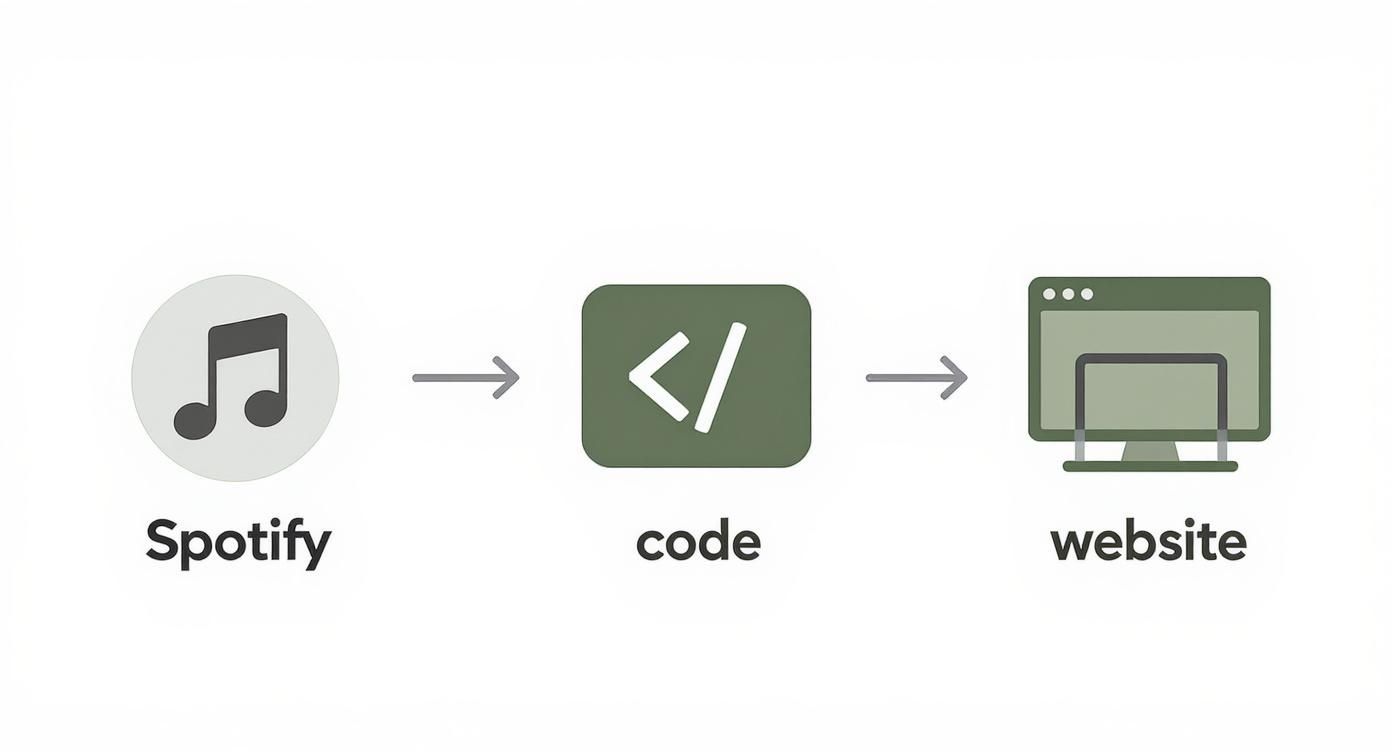
As you can see, the path from your music to your audience is a short one. It's all about choosing the right tool for the job.
Clearing Up Common Questions About Sharing Playlists
Once you start sending your playlists out into the world, a few questions are bound to come up. It's easy to get tangled up in the details of privacy settings, who can listen, and the different kinds of playlists you can create. Let's clear the air on some of the most common points of confusion so you can share your music confidently.
Think of this as your quick-reference guide for all those little "what ifs" that pop up when you're managing your Spotify shares.
Who Can See and Listen to My Playlist?
A question I hear all the time is, "Can I see who listened to my playlist?" The short answer is no. Spotify keeps individual listening habits private, so you can't get a list of who has streamed your tracks. You can see how many followers a public playlist has, but that's as deep as the analytics go for personal accounts.
So, does a playlist have to be public to share it? Absolutely not. You can share a private playlist simply by sending someone the direct link. The key difference is that only people with that specific URL can access it. It won't show up on your profile or in search, making it ideal for curated mixes meant for a specific person or a small group.
Public playlists are built for discovery. Private playlists shared via a link are for exclusive access. Choose the one that fits your goal.
Regular Playlists vs. Collaborative Playlists
It’s also crucial to know the difference between a standard playlist and a collaborative one, as it completely changes the sharing experience.
When you share a regular playlist, you're the sole curator. Others can listen to it and follow it, but that's it—they can't touch the tracklist. Think of it as a finished product you're presenting to an audience.
On the other hand, a collaborative playlist is an open invitation. When you make a playlist collaborative and share the special invite link, you're giving others permission to:
- Add their own favorite songs
- Remove tracks they don't like
- Rearrange the song order
This turns the playlist into a living, breathing project that everyone can shape. It's perfect for road trip planning, party mixes, or just discovering new music with friends. You can toggle any playlist you've created to be collaborative right from the options menu.
Finally, what happens if your friend can't play the songs you've shared? This is almost always a classic case of regional licensing restrictions. A track that's available in your country might not be licensed for streaming in theirs. Less often, it might be because they're on a free Spotify mobile account, which limits them to shuffle-play mode.
At OohYeah, we believe in giving artists the tools to build their careers on their own terms. Our platform is designed to help you connect directly with your fans, sell your music and merch, and keep more of your revenue. Start building your future with OohYeah today.