How to Download Music from SoundCloud on iPhone A Practical Guide
Learn how to download music from SoundCloud on iPhone using safe, official methods. Our guide covers offline listening, free downloads, and library management.
December 11, 2025
Music Marketplace Advisor
Buying & SellingSo, you're looking to download music from SoundCloud directly to your iPhone? Smart move. The best and safest ways to do this are either through the official SoundCloud Go+ subscription for offline listening or by finding tracks that artists have generously made available for free download.
This guide will walk you through these legitimate methods, helping you get your favorite music ready for those times when you're off the grid.
Getting SoundCloud Music on Your iPhone
Struggling to figure out how to get your favorite SoundCloud tracks onto your iPhone for offline listening? You’ve come to the right place. We'll cut through the noise and show you the proper ways to enjoy music without an internet connection, focusing on the key difference between saving music within the app and downloading actual audio files from artists.
Forget those sketchy third-party downloader tools. We’re sticking to safe, practical solutions that respect the creators and keep your device secure.
What Are Your Offline Options?
SoundCloud is built around an in-app experience, and this is especially true for iPhone users. The platform has become mobile-first, with a staggering 72% of all listening sessions happening on mobile devices. While Android has a larger user base, iOS users are particularly engaged, interacting with playlists 18% more on average. This mobile-centric design is precisely why the official offline feature is so deeply integrated into the app.
To make things crystal clear, here’s a quick overview of the two main paths you can take to get offline music from SoundCloud.
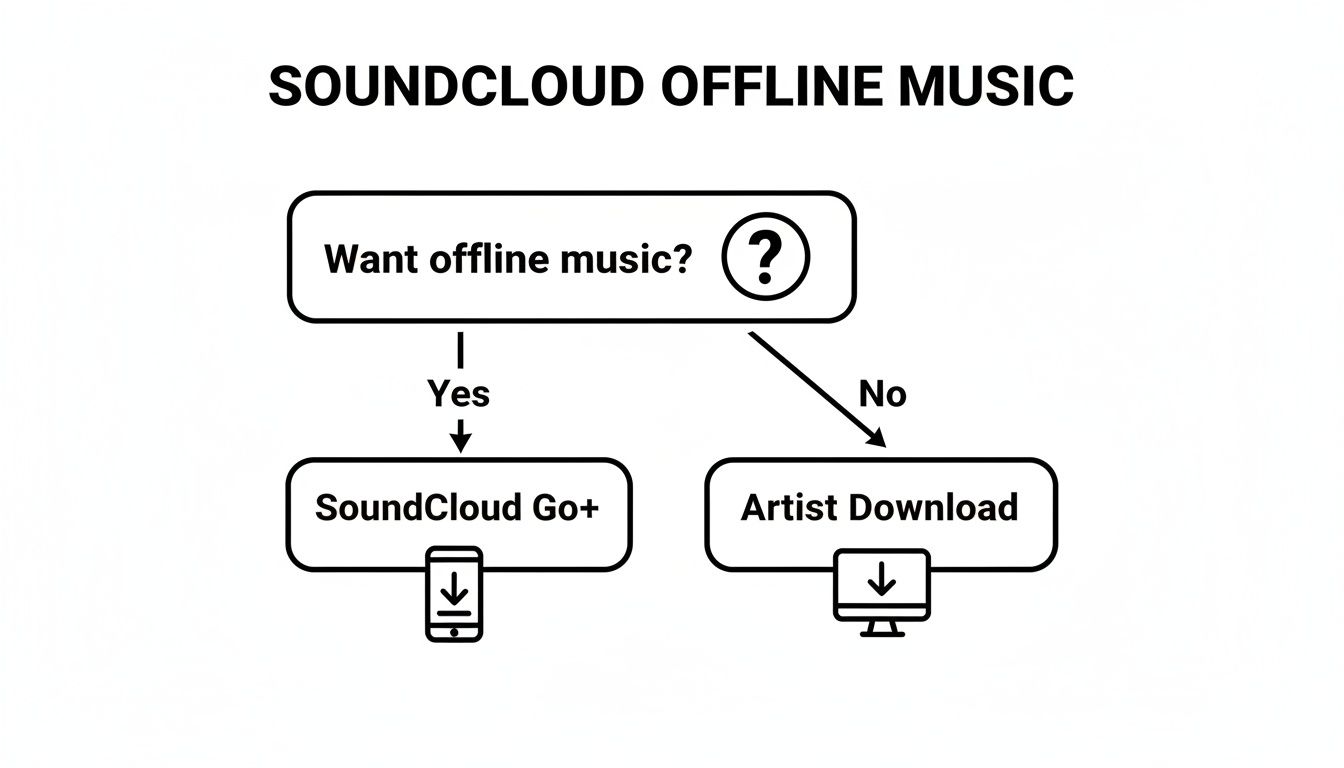
As you can see, your choice really boils down to convenience versus permanence. Do you want easy, integrated offline access to a massive library, or do you prefer to own a specific file forever?
To help you decide, let's break down the key differences between these methods.
SoundCloud Offline Access Methods at a Glance
This table offers a quick comparison of the primary ways to get SoundCloud music for offline listening on your iPhone.
| Method | Cost | File Type | Legality & Safety |
|---|---|---|---|
| SoundCloud Go+ | Monthly Subscription | Cached within the app (not a transferable file) | 100% Legal & Safe. Sanctioned by SoundCloud. |
| Artist Downloads | Free (at the artist's discretion) | MP3, WAV, etc. (a real audio file) | 100% Legal & Safe. Provided directly by the creator. |
Ultimately, the SoundCloud Go+ route is designed for seamless, on-the-go listening within the ecosystem you already know. In contrast, artist-provided downloads give you a permanent file, but the availability is entirely up to the creator's choice. By the end of this guide, you’ll know exactly which path is right for you.
Using SoundCloud Go for Seamless Offline Listening
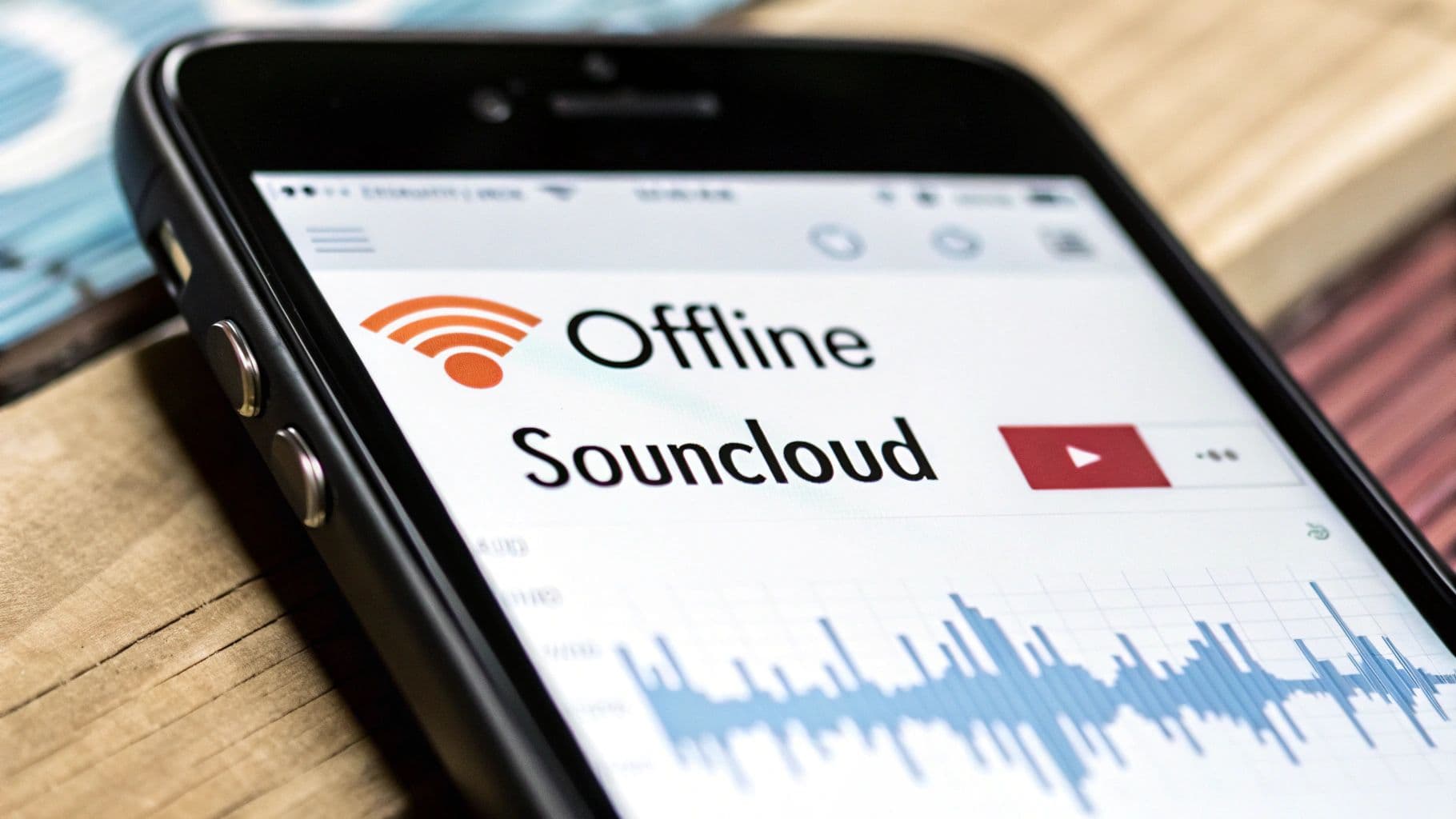
The most straightforward and officially sanctioned way to take your SoundCloud tracks offline on an iPhone is by subscribing to SoundCloud Go+. This is the platform's own premium service built for exactly this purpose: letting you save unlimited music for listening anywhere, internet or not. It’s perfect for flights, subway commutes, or just saving on mobile data.
It's important to be clear about what "offline listening" means here. When you use SoundCloud Go+, you're not actually downloading standard MP3 or WAV files onto your iPhone. Instead, the app saves a special, encrypted version of the track within the app itself. This is a critical distinction—you can't move these files to a USB drive or play them in another music app. They live exclusively inside SoundCloud.
This system is entirely different from the free, artist-enabled downloads you might see on the desktop site. The way SoundCloud is set up for iPhone users is a mix of protecting artist copyrights and providing a convenient service. While subscriptions like Go+ offer a great offline experience through the app, directly saving MP3s to your iPhone's local storage from any track is intentionally restricted. This model shapes how users interact with the platform, a dynamic you can explore further through SoundCloud statistics and user behavior insights on electroiq.com.
How to Save Tracks for Offline Listening
Once you're a SoundCloud Go+ subscriber, saving music is dead simple. The app adds an "Offline" button right where you need it, making it a breeze to build your collection.
You can save tracks one by one as you find new music. Just tap the three-dots menu on any song and select "Save for Offline."
But the real time-saver is saving entire playlists or your whole "Liked Tracks" library in one go. This is where the feature truly shines.
- For Your Liked Tracks: Head to your Library, tap "Liked Tracks," and you'll spot a download arrow icon right at the top. One tap, and it starts syncing every song you've ever liked.
- For Playlists: Go to any playlist—one of yours or one you follow—and you'll find that same download arrow. This is fantastic for curating a specific vibe for a road trip or a workout without having to save each song individually.
After you hit the sync button, the app gets to work downloading everything in the background. A little orange progress bar will pop up at the bottom of your screen, letting you know it’s working.
Accessing and Managing Your Offline Collection
Finding your saved music is just as easy. Everything you've synced for offline playback is all in one place.
Pro Tip: Before you head out on a long trip, pop open the SoundCloud app while you're still on Wi-Fi and navigate to your offline library. This forces a quick sync and ensures everything is actually downloaded and ready, so you don't get caught without your music when you lose your connection.
To get to your downloads, just tap the Library icon in the app's bottom menu. You’ll see a section clearly marked "Downloads" or "Available Offline." This is your hub for all the songs, playlists, and albums you've saved.
Don't forget about storage management. If your iPhone starts filling up, you can easily free up space. Just head back to the playlist or track and tap the download icon again to "unsync" it. For a total reset, you can also go into the app's settings and clear the entire offline cache, giving you complete control over how much space your music is taking up.
Downloading Tracks Artists Offer for Free
While SoundCloud Go+ is a great subscription, there's another totally legitimate way to build your offline library: grabbing the tracks that artists have decided to give away for free.
This method gives you a real audio file—think MP3 or WAV—that you own forever. You can move it between devices, add it to your DJ library, or just keep it safe in your personal collection.
Many up-and-coming artists and indie producers make their tracks downloadable as a way to grow their audience. It's a classic promo strategy to get their music into the hands of fans and DJs or to share passion projects and remixes. When you download their work, you’re connecting with them exactly as they intended.
Now, there's a small catch. This process requires a couple more steps than the simple offline feature in the app, mostly because the download button almost never appears on the SoundCloud iPhone app itself. You'll need to use a desktop computer for the first part.
Finding and Saving Free Tracks
Spotting a downloadable track is easy once you know what to look for. Hop on the SoundCloud website using a computer and look for a "Download" button right under the track's waveform. If that button isn't there, the artist hasn't enabled free downloads for that song. It's as simple as that.
The whole process breaks down into two phases: getting the file onto your computer and then moving it over to your iPhone.
First, head to the SoundCloud website on your Mac or PC and find the song you want. If you see the download button, give it a click. The audio file will save directly to your computer's "Downloads" folder.
With the file safely on your hard drive, you're ready to get it onto your iPhone.
By enabling free downloads, creators are trusting their listeners to respect their work. This act of good faith helps build a stronger community, but it also highlights the need for artists to understand their rights. For those interested, exploring how to protect your music from piracy can provide valuable insights into managing digital distribution effectively.
Syncing the Music to Your iPhone
Once you've got the track on your computer, you have a few solid ways to transfer it to your iPhone so it shows up in your Apple Music library. For Mac users, iCloud Drive and the Finder app are probably the smoothest options.
Using iCloud Drive:
- Drag the downloaded audio file into the iCloud Drive folder on your computer.
- On your iPhone, open the Files app and find the track in your iCloud Drive.
- You can play it right from the Files app or tap the "Share" icon to open it with a different media player.
Using Finder on a Mac:
- Plug your iPhone into your Mac using a USB cable.
- Open a new Finder window and click on your iPhone in the sidebar.
- Go to the Music tab.
- Simply drag the audio file from your computer and drop it onto your iPhone in the Finder window. The track will sync automatically and appear in the Music app on your phone.
This is a fantastic, no-cost way to download music from SoundCloud while directly supporting the artists who choose to share their creations freely.
Navigating Third-Party Download Tools Safely
Search for ways to download SoundCloud tracks on your iPhone, and you'll quickly run into a minefield of third-party websites and apps. They all make the same tempting promise: paste any SoundCloud link and get a free MP3. It sounds easy, but this route is riddled with risks that can put your personal data and your iPhone in jeopardy.
Let's be clear—these unofficial tools exist in a legal and ethical gray area. Using them goes against SoundCloud's terms of service and can easily cross the line into copyright infringement. More importantly, it hurts the artists who rely on official streams and sales to make a living. Beyond that, the download sites themselves are often a security nightmare.
Recognizing the Red Flags of Unsafe Downloaders
Learning to spot a shady service is your best line of defense. Many of these sites are designed to look just legitimate enough to trick you, but a few tell-tale signs almost always give them away. Your digital safety really comes down to being a little skeptical before you paste a link or hit a download button.
Keep an eye out for these classic red flags:
- Excessive and Intrusive Ads: Is the site covered in aggressive pop-ups, flashing banners, and constant redirects? That’s a huge warning sign. These ads are a common delivery system for malware.
- Requests for Personal Information: A simple downloader has no reason to ask for your email address, passwords, or any login details. That's a classic phishing attempt to hijack your accounts.
- Forced Software Installation: If a site demands you download a separate "installer," a browser extension, or an ".exe" file to get your music, close the tab immediately. These are frequently bundled with spyware.
- Poor Site Design and Broken Links: A site riddled with spelling mistakes, unprofessional design, and dead links was likely thrown together in a hurry—a common trait of scam operations.
The problem here is bigger than just one song. When you engage with untrustworthy software, you open the door to all sorts of security problems on your device. It’s wise to understand the general data security and privacy concerns with third-party tools to keep all of your information safe, not just your music.
The Bottom Line on Third-Party Tools
When it comes down to it, I can't recommend using any third-party SoundCloud downloader. The potential for malware, data theft, and legal trouble simply isn't worth the convenience of grabbing a track for free.
Stick with the official methods. Using SoundCloud Go+ or finding direct downloads from artists ensures you’re supporting the creators you love while keeping your iPhone secure. If you’re looking for budget-friendly ways to listen, you're better off exploring legitimate options. There are plenty of guides on how to legally stream music for free that point you toward safe, ethical platforms. Taking the high road protects the music ecosystem and your own digital life.
Managing Your Offline Music on an iPhone
Once you've saved a bunch of music for offline listening, the real work begins: keeping it all organized. A tidy library means your favorite tracks are always just a tap away, whether you've synced them through a SoundCloud Go+ subscription or moved over some legitimate MP3s.
If you’re a SoundCloud Go+ user, your main concern is going to be storage. Every track you save for offline use is cached inside the app, and that can add up fast, eating into your iPhone's precious space. Staying on top of this is key to keeping your phone running smoothly.
This is especially true when you consider how many people use SoundCloud on the go. In the United States, which makes up almost 22% of SoundCloud’s traffic, over 58% of users are on mobile devices. That mobile-first reality makes on-device storage management more important than ever.
Keeping Your SoundCloud Go Library Tidy
Thankfully, managing your SoundCloud Go+ downloads is pretty simple and happens right inside the app.
To clear out a specific track or playlist you no longer need, just find it in your library and tap the orange "Downloaded" button. This will remove it from your offline collection and delete the cached files.
Need to free up a lot of space at once? You can clear the entire cache in a few steps:
- Head into the SoundCloud app and tap on your Library icon. From there, tap the three dots in the top-right corner to open Settings.
- Look for a menu called "Downloads" or "Storage."
- You should see an option to "Clear cache" or "Remove all offline content." Tapping this will wipe all saved tracks in one go.
Organizing Downloaded MP3 Files in Apple Music
For any artist-provided MP3s you’ve downloaded and synced to your iPhone, the native Apple Music app is your home base. Here, you can treat these tracks just like any other song you own, which means you can add them to playlists and fine-tune their details.
A well-organized library isn't just functional; it's personal. Taking a few moments to properly tag your tracks, add album art, and create playlists transforms a folder of files into a curated music collection that feels uniquely yours.
After you sync a new batch of songs from your computer, pop open the Music app to get them sorted.
- Build New Playlists: Group your latest SoundCloud discoveries into custom playlists like "Morning Commute" or "Late Night Coding."
- Edit Track Info: Sometimes a downloaded track has missing or messy info. You can easily edit the metadata—like the artist, album, or year—on your computer before you sync to make sure everything looks clean on your phone.
- Add Album Artwork: Nothing beats a visually appealing library. You can add missing album art using the Music app on a Mac or PC, which makes browsing your collection much more enjoyable.
And speaking of a personal touch, you can take customization beyond your music library. It's even possible to customize your iPhone's app icons for a look that's completely your own.
Answering Your Top SoundCloud Download Questions
We've walked through the main ways to get SoundCloud tracks onto your iPhone, but I know there are always a few lingering questions. Let's tackle some of the most common ones I hear to make sure you're set up for success.
Is It Actually Legal to Download Music from SoundCloud?
This is the big one, and thankfully, the answer is pretty clear. Using SoundCloud's official Go+ subscription to save tracks for offline listening inside the app is 100% legal. The same goes for any track where an artist has deliberately enabled the "Download" button—they're giving you permission.
Where you run into trouble is with third-party sites and apps that "rip" audio from a stream. That almost always violates both SoundCloud's rules and the artist's copyright. By sticking to the official methods, you're not only staying on the right side of the law but also directly supporting the artists you listen to.
Why Don't All Songs Have a Download Button?
Ever find a track you love, only to see the download button is missing? It's not a glitch. The ability to download a track is a feature that artists or their labels must intentionally turn on for each song.
Many commercial artists and labels choose to keep downloads disabled. This protects their music and encourages fans to engage through official streams or purchases. So, if the button isn't there, it’s a conscious choice made by the creator.
Think of your SoundCloud Go+ subscription as a rental, not a purchase. Your offline access is directly tied to your membership. If you cancel, all those saved tracks will disappear. They're stored in a protected cache, not as permanent files you can move or keep.
What Happens to My Offline Music if I Cancel SoundCloud Go?
This is a crucial detail to remember. When your SoundCloud Go+ subscription ends, you will lose access to all the music you saved for offline listening.
Those files aren't regular MP3s you can transfer to your computer. They're stored in a special, encrypted format within the app's cache and can only be unlocked with an active subscription. The moment your membership lapses, the key is gone, and you'll need Wi-Fi to stream those tracks again.
How Much iPhone Storage Will My Offline Tracks Take Up?
The space your offline library consumes really comes down to two factors: audio quality and the sheer number of tracks you save.
Here’s a quick breakdown:
- Standard Quality: A typical 3-4 minute song will use about 3-5 MB.
- High Quality: The same song in high quality will be larger, usually around 6-10 MB.
Doing the math, a playlist of 100 songs could easily take up anywhere from 300 MB to a full 1 GB of your iPhone's storage. You can keep an eye on this in the SoundCloud app's settings. For more technical questions about file management, it's often helpful to check an artist platform's official resources, like the OohYeah FAQ, which addresses common user issues.
Ready to take control of your music career? OohYeah provides a dedicated platform for artists to sell music, merchandise, and subscriptions directly to fans, commission-free. Join today and start building a sustainable future for your art at https://oohyeah.app.