How to Add Album Art to MP3: A Creator's Guide
Learn how to add album art to MP3 files with our expert guide. Follow step-by-step instructions for Windows, Mac, and batch tools to look professional.
April 10, 2026
Music Marketplace Advisor
Buying & SellingYou upload a new track, check it on your phone, and see a blank music-note icon where your cover should be. The song may sound finished, but the file still looks unfinished.
That gap matters more than most artists realize. If you want fans to treat your music like a real release instead of a loose file, you need to know how to add album art to mp3 properly. Not loosely attached in one app. Embedded in the file itself, so it travels with the track.
The good news is that this is not difficult once you use the right workflow. The bigger issue is choosing the method that fits your catalog size, your operating system, and the level of control you want over metadata.
Why Album Art is Important for Your Music's Success
A finished track with no embedded cover art looks unfinished the second it leaves your DAW. Fans notice it in downloaded files, DJs notice it in folders, and platforms notice it when your release package is incomplete.

For independent artists, album art is part of the product. It gives the song a visual identity, reinforces recognition across devices and apps, and makes the file feel like an official release instead of a stray MP3. That difference affects trust. A cleanly tagged file signals care, and care is part of how artists build repeat listeners into paying supporters.
The branding problem most artists miss
A lot of artists get the public-facing assets right, then neglect the file itself. The Instagram post looks polished. The streaming profile looks polished. The downloaded MP3 does not. That break in presentation weakens the brand you spent time building.
Your audio file should match the standard of your press photos, release copy, and artist story. If you are also refining that side of your presentation, this guide on crafting a compelling musician bio helps align your story with the same professional standard as your metadata.
Why this affects engagement and revenue
Fans sort music visually before they read metadata. They scan a phone screen, a playlist, a folder, or a media player and make a fast decision. The cover often does as much positioning work as the title itself.
That matters on creator-focused platforms as well. On OohYeah, strong release presentation supports how fans perceive value, remember your catalog, and decide what to revisit, share, or buy. If you want the bigger picture on visual presentation, read why artists should invest in quality cover art.
Here is the practical rule I give artists. If someone downloads your song and cannot identify it instantly, the file is reducing your visibility at the exact moment you want recognition.
Embedded album art also protects your release as it moves. Files get forwarded, copied to phones, loaded into DJ software, added to USB drives, and stored in local libraries. When the artwork travels with the MP3, your branding stays attached to the music instead of depending on a platform to display it correctly.
Understanding Album Art Foundations and Specifications
Before you tag a single file, set the artwork up properly. Clean embedding starts with the image itself, the tag version, and a file structure you can trust across players, stores, and fan downloads.
What embedded album art is
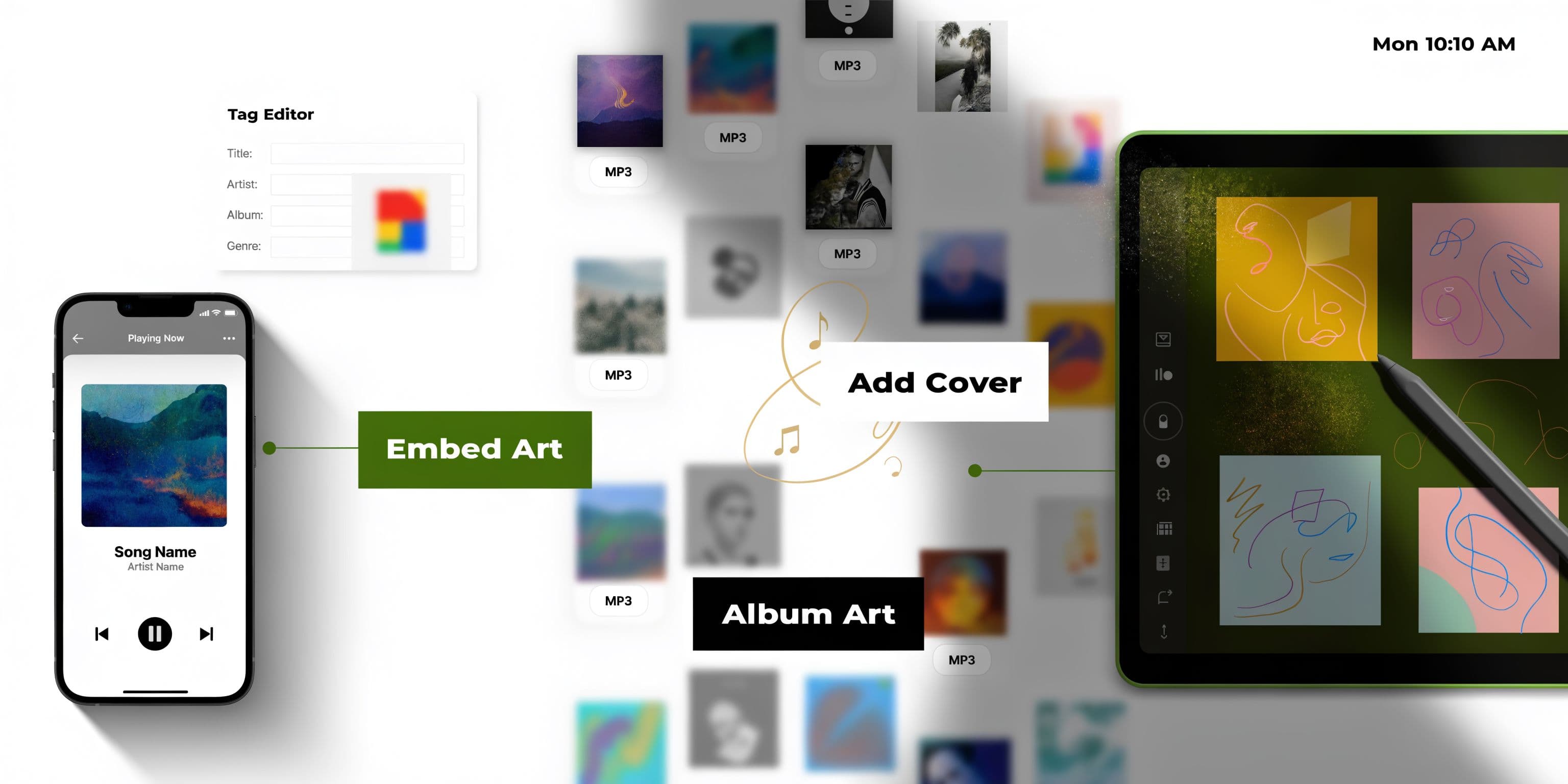
An MP3 can hold audio and metadata in the same file. That metadata usually includes the artist name, release title, track number, and cover image, and it is commonly stored in ID3 tags.
ID3 became the standard way to carry that information with MP3s, and ID3v2 introduced support for embedded images. That change was significant, as MP3s spread quickly and needed a way to carry artwork with them. For artists, the practical takeaway is simple. If the art is embedded correctly, the file stays branded when it leaves a streaming app and lands in a download folder, DJ library, USB drive, or fan archive.
That consistency affects more than presentation. On creator platforms such as OohYeah, strong metadata handling supports recognition, repeat listening, and purchase confidence. If you want the broader release package to hold up across platforms, review these music metadata optimization practices for streaming.
The image specs that work best
For independent releases, the safest standard is a square JPEG exported from one approved master cover.
Use these specs unless a distributor gives you a stricter requirement:
- 1400x1400px or larger
- JPEG format
- Square aspect ratio
- Reasonable file size, ideally kept lean so the MP3 does not become unnecessarily heavy
I usually recommend JPEG for embedded art because it gives the best compatibility across media players, phones, car systems, and older software. PNG is fine for working files and design review, but it often creates larger tags and less predictable playback support.
| Format | Best use | Trade-off |
|---|---|---|
| JPEG | Everyday release files and broad device support | Some compression |
| PNG | Master artwork with sharp text or graphic detail | Larger embedded file size |
| Square image | Consistent display across players and stores | Cropping needs to be intentional |
Use one approved cover per release. A single, EP, or album should carry the same visual identity across every track unless you are deliberately assigning unique artwork.
What to avoid before embedding
Bad results usually come from preventable prep mistakes, not from the tagging software.
Avoid these:
- Low-resolution web grabs that look soft on modern screens
- Rectangular crops that display awkwardly or get clipped
- Oversized image files that add bloat to every MP3
- Multiple near-identical cover versions that create catalog confusion
- Artwork you do not have rights to use
Artists often treat artwork and metadata as separate tasks. In practice, they are part of the same release system. If the image is inconsistent, mislabeled, or oversized, that problem follows the music everywhere the file goes.
If you need to clean up, resize, or adapt a cover before embedding it, the ShortGenius AI image editor is a practical option for prep work.
Adding Album Art with Built-in Desktop Tools
If you only need to tag one song or a handful of files, built-in desktop tools are fine. They are not the fastest option for a full catalog, but they work for quick corrections and one-off releases.

Microsoft’s Windows Media Player has been available since 1996 and reached widespread Windows penetration by 2009. It offered one of the earliest native ways to add art, including drag-and-drop to the album art icon and the Advanced Tag Editor, with art saved in ID3v2.3/2.4 frames, as shown in this Windows Media Player tutorial reference.
On Windows with Windows Media Player
For a single-track job, Windows Media Player is often enough.
- Open Windows Media Player.
- Add the MP3 to your library if it is not already there.
- Find the album or track tile.
- Copy your square cover image.
- Right-click the album art area and paste it, or drag the image onto the album art icon if your version supports it.
- Let the program write the updated metadata.
- Close and reopen the file in another player to confirm the art stayed embedded.
If you have access to the Advanced Tag Editor in your setup, use the picture field there for cleaner control.
On Windows with File Explorer properties
This route is less reliable for image embedding, but some users try it first because it is built in. File Explorer is better for checking basic fields than for dependable artwork management. If album art matters, Windows Media Player or Mp3tag is the safer bet.
That is the recurring lesson with built-in tools. They are convenient, but they are not designed for serious metadata cleanup.
On macOS with the Music app
Apple’s Music app is the easiest Mac option for occasional edits.
- Open Music.
- Import the MP3 if needed.
- Select the song and choose Get Info.
- Open the artwork tab.
- Drag in the image file or click to add it manually.
- Save the change.
- Test playback on another device or player before distributing the file.
If the art appears in Music but not elsewhere, the file may need a more explicit tag rewrite in a dedicated editor.
Where built-in tools work well
Built-in tools are good for:
- Single releases: One song, one cover, quick turnaround.
- Minor fixes: Replacing a wrong image before sending a file.
- Basic desktop workflows: Artists who do not want to install extra software yet.
They are weak for:
- Large catalogs
- Bulk consistency
- Cross-player troubleshooting
If you want a visual walkthrough before trying it yourself, this demonstration helps:
Test outside the app that wrote the tag. A file that looks correct in one desktop player can still fail in a phone app, DJ software, or a fan’s library.
The Professional Workflow for Batch Adding Album Art
When artists ask me for the fastest reliable answer to how to add album art to mp3 across a full EP, album, or back catalog, the answer is usually Mp3tag. It is the tool that gives you speed, consistency, and control without making the process complicated.
Built-in apps are fine for one song. They are the wrong tool for fifty songs.

Why Mp3tag is the working standard
Dedicated workflow data shows that with a tool like Mp3tag, a professional can process many tracks per minute on a modern CPU. The same expert guidance recommends ID3v2.3 UTF-8 because it reaches 98% compatibility with players like VLC and mobile apps, compared with 85% for ID3v2.4 on legacy devices, according to this Mp3tag workflow reference.
Those numbers tell you what matters in practice. Use the version that travels cleanly across devices, not the one that looks newest on paper.
The fastest clean workflow for one release
Use this when all tracks on a release need the same cover.
Prepare the files
Put the full release in one folder. Make sure the cover image is finished, square, and named clearly.
Load the folder into Mp3tag
Drag the folder into the main window. Confirm the track list is complete.
Select all tracks
Use Ctrl+A so every file in the release gets updated together.
Open the cover area
In the extended tags or side panel, right-click the cover placeholder and choose Add cover.
Choose the final artwork
Import the release image once. Do not mix alternate drafts at this stage.
Save
Hit Ctrl+S and let Mp3tag write the art into every selected file.
That is the simplest batch workflow. It is fast, repeatable, and easy to audit.
Settings that prevent most compatibility problems
The details matter here. Small choices save hours later.
- Use ID3v2.3: It remains the safer distribution format when you need broad playback support.
- Prefer JPEG: It avoids some of the format-specific failures seen elsewhere.
- Keep file size controlled: Very large artwork creates avoidable playback and sync issues.
- Use square art only: Non-square images cause ugly display behavior in enough players that they are not worth the risk.
My rule for release delivery: If the file might end up on a phone, in a car, in a DJ app, or in a fan’s download folder, I tag for compatibility first and novelty second.
When to use automation
Mp3tag also supports more advanced actions for fetching or assigning artwork automatically. That can save time if you manage a large catalog, but automation only works well when your files are named consistently.
If your folder naming is chaotic, automated lookups create more cleanup work than they save. Good metadata starts with orderly filenames.
A structure like this helps:
- Artist - Album - Track Number - Title.mp3
- One cover file stored with the release
- Final master files separated from drafts and alternates
What works and what does not
Here is the practical difference between a good batch session and a bad one:
| Works well | Usually causes trouble |
|---|---|
| One approved cover for the whole release | Multiple image versions in the same folder |
| Consistent filenames | Loose naming from bounce exports |
| ID3v2.3 save settings | Mixed tag versions across tracks |
| Manual spot-check after saving | Assuming the software got everything right |
For larger libraries
If you are maintaining years of releases, bootlegs, demos, stems, and alternate versions, tag in batches by project rather than selecting your whole archive at once. That lowers the chance of one wrong image getting written across unrelated material.
For serious creators, that discipline matters. A neat library does not just save time. It makes every upload, transfer, backup, and direct-sale delivery cleaner.
Best Practices for Metadata and Distribution
Artwork is the visible part of file hygiene. Metadata is the structural part. If you embed a perfect cover into a poorly tagged MP3, the release still feels sloppy once it lands in a fan’s library.
That matters because complete and professional embedded art is tied to better interaction outcomes. For artists on platforms like OohYeah, tracks with polished embedded art drive significantly more fan interactions, including direct messaging and engagement with exclusive content. That figure appears in the verified data assigned to this topic, and it reinforces a broader truth: clean presentation earns attention.

The fields that deserve your attention
Most artists focus on title and cover only. That is not enough.
These fields should be consistent before distribution:
- Album Artist
- Track Artist
- Track Number
- Album Title
- Release Year
- Genre
- Cover Art
The biggest mistake is mismatch. If one track says “The Midnight Echo” and another says “Midnight Echo,” some players split the release into separate entries. Fans experience that as disorder, even if they cannot name the reason.
Why consistency affects distribution quality
Metadata shapes how your music is displayed, sorted, and grouped. It affects how professional the release looks in downloads, local libraries, and playback apps.
A clean release package also helps you compare files against what was intended at launch. If the title, artist, and artwork all match your approved release sheet, your distribution process becomes easier to trust.
If you are still choosing where and how releases should move, this guide on https://oohyeah.app/posts/how-to-choose-the-right-music-distribution-service gives useful context for the distribution side of that decision.
Pre-upload checklist
Use this before any release leaves your drive.
Metadata check before upload
- Confirm every track on the release uses the same album title spelling
- Check that Album Artist is uniform across all files
- Verify track numbers are in the correct sequence
- Make sure the cover image is the final approved version
- Open at least one file in a second player to verify the art is embedded
- Remove test exports, alt covers, and draft masters from the upload folder
Professional files feel intentional
Fans rarely compliment metadata directly. They notice the absence of friction instead. The release opens cleanly, displays correctly, and looks like it belongs there.
That is the standard worth aiming for. Not because metadata is glamorous, but because broken metadata makes finished music feel unfinished.
Troubleshooting Common Album Art Issues
Most album art failures come down to caching, tag version mismatch, or bad source images. The fix is usually simple once you identify which of those three is causing the problem.
My artwork is not showing on my phone
This often means the phone app is showing cached data, not the updated file.
Try this:
- Delete the track from the device library.
- Re-add the freshly tagged file.
- Refresh the app library or restart the device.
- Test the same file in a second player.
If it appears in one player and not another, the file may be fine and the app may be the problem.
The wrong cover art keeps appearing
That usually happens when an old embedded image is still attached or the player is pulling art from an existing library record.
Use a dedicated tag editor and:
- Remove the current artwork completely
- Save the file
- Reopen it
- Add the correct cover and save again
For stubborn cases, strip the artwork field first, then write the new image as a fresh tag entry.
The image looks stretched or blurry
This is usually an image preparation issue, not an audio issue.
Check these points:
- Square shape: Non-square art often displays badly.
- Export quality: Tiny web images look weak on modern displays.
- Format choice: JPEG is usually safer for broad compatibility.
If the art looks sharp in your image viewer but bad in the player, the player may be generating a thumbnail preview poorly. Test in another app before redoing the file.
I cannot remove old artwork
Some players cache album thumbnails aggressively. Removing the image from the file does not always remove the display image immediately.
Do this in order:
- Remove artwork in a tag editor.
- Save the file.
- Close the player.
- Reopen the player or refresh the library.
- Re-import if necessary.
Quick diagnosis tip: Always keep one “known good” MP3 on your system with verified embedded art. If that file displays correctly and your new file does not, the problem is in the tag or image. If neither displays correctly, the problem is probably the player.
The file shows art on desktop but not after upload
That is often a compatibility issue. Re-save the MP3 using a broadly supported tag version in a dedicated editor, then test again before uploading.
If you remember one thing from this guide, make it this: embed the image inside the file, use consistent metadata, and test outside the app you used to edit it. That workflow solves most problems before your fans ever see them.
If you want a place where polished music files, direct fan relationships, and creator-first monetization work together, explore OohYeah. It gives artists a way to sell, share, and market their work while keeping control over how releases are presented to fans.