Audio Test: How to Test Your Speakers & Gear
Learn how to run an audio test on your speakers, headphones, and gear. DIY methods, online tools, and troubleshooting tips for musicians and audio pros.

October 2, 2026
Music Marketplace Advisor
Buying & SellingAn audio test is a quick way to check if your speakers, headphones, microphones, or recording gear are working the way they should. Whether you're buying used equipment, setting up a new studio, or troubleshooting why something sounds off, running an audio test takes minutes and saves you from bigger headaches down the road.
If you're shopping for used audio gear on OohYeah, knowing how to test before you buy (or before you ship to a buyer) is essential. Let's break down the easiest methods.
Why You Need to Run an Audio Test
Audio tests confirm your gear is producing sound at the right levels, in the right channels, and without distortion or dropouts. Musicians, producers, engineers, and studios rely on this to catch defects early.
Related: Best Audio Advice for Selling Music Gear in 2026
When you're buying or selling used gear—guitars, drums, microphones, studio monitors, audio interfaces, mixers, or DJ equipment—a basic audio test proves the equipment is functional. It builds trust between buyer and seller, and it saves both of you from disputes or returns.
Plus, if you're setting up a new recording space or live sound rig, an audio test identifies problems before they show up during an actual session or performance.
Simple Stereo Speaker Test
One of the most common audio tests is the stereo test. This checks whether your left and right speakers are working independently and are wired correctly.
How to do it:
- Visit a browser-based stereo test tool (search "stereo speaker test" online)
- Play the test audio through your speakers
- You'll hear a tone sweep from left to right and back
- Confirm you hear sound moving between speakers
- If one side is silent or weak, you've found your problem
This works with any device that has a browser and audio output: laptops, tablets, phones. No special software or expensive test equipment required.
Microphone and Input Device Testing
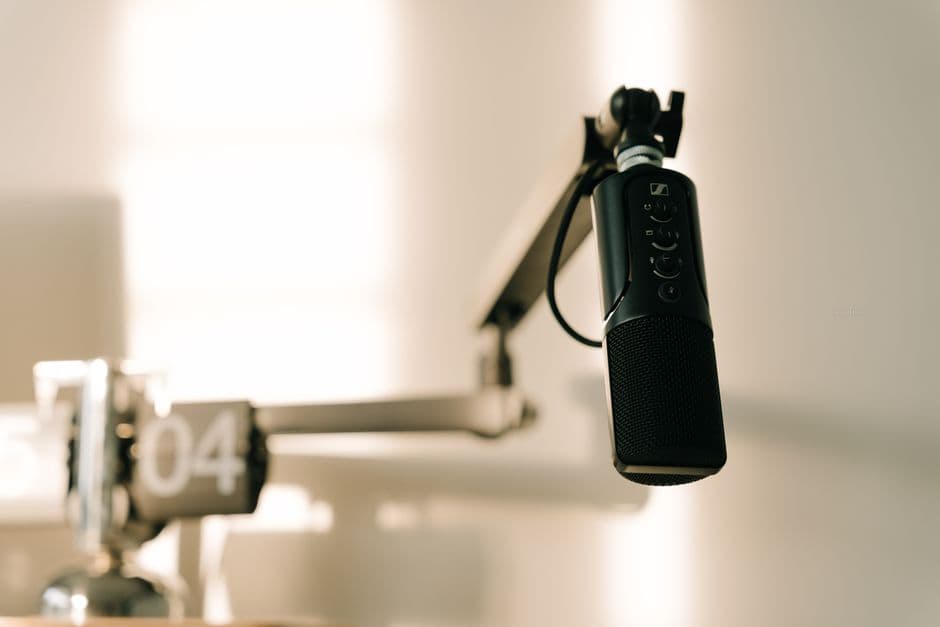
If you're testing a microphone, audio interface, or mixer, you need to confirm the input signal is being captured cleanly.
Steps:
- Connect your microphone or input device to your computer or interface
- Open any free recording software (Audacity, Voice Memos, your DAW)
- Hit record and speak or make noise into the mic
- Play it back and listen for your voice or sound
- Check for crackling, distortion, or dropouts
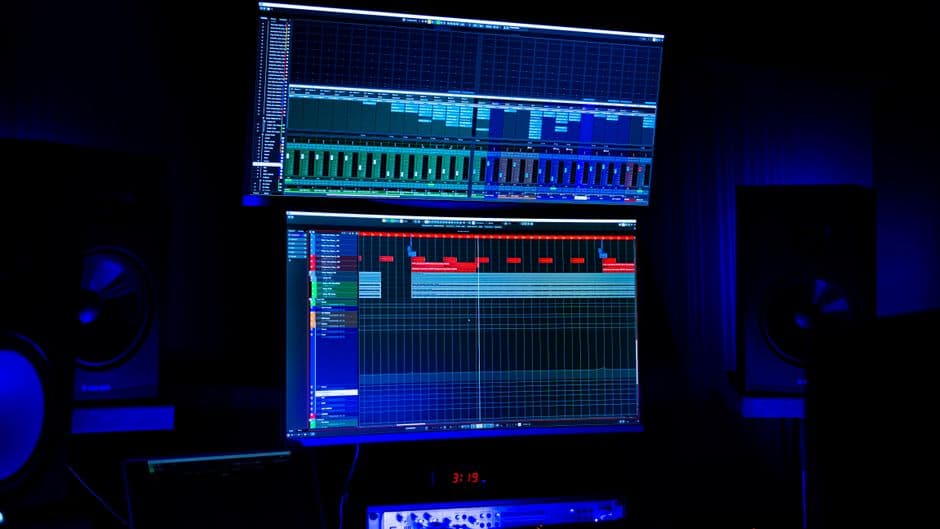
- Look at the input meter to see if it's picking up signal at healthy levels (not peaking, not barely moving)
A healthy input signal sits around the middle of the meter, not slamming the peak (which causes distortion) and not barely moving (which means weak signal).
Headphone Testing
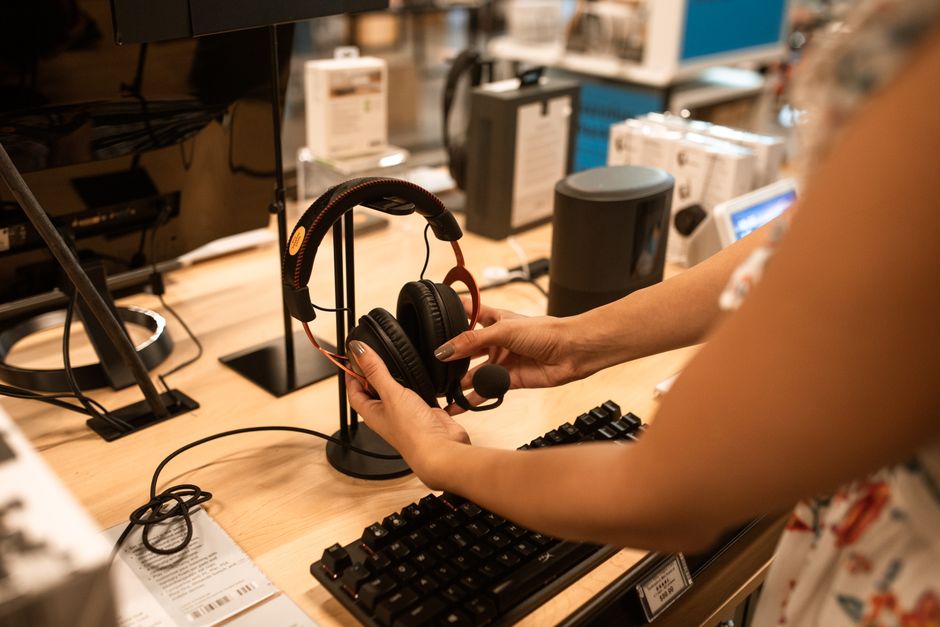
Headphones and earbuds deserve their own test. You want to confirm both ears work, there's no buzzing or crackling, and the balance is even.
Quick test:
- Play music or a stereo test tone
- Put on your headphones
- Listen for sound in both ears
- Gently wiggle the cable near the jack (if it's wired)—if sound cuts in and out, there's a connection problem
- Try different audio content: music, speech, the stereo sweep
- Check that the volume control works smoothly if your headphones have one
If one ear is completely silent or much quieter, the driver (the speaker inside) might be blown.
Testing Speaker Quality and Frequency Response
If you want to go deeper, test the frequency response of your speakers. This shows you what bass, mids, and highs they can reproduce.
How:
- Search for a "frequency sweep test" or "audio frequency generator"
- Play the sweep through your speakers (it goes from low to high frequencies)
- Listen carefully—you should hear the pitch climbing smoothly
- If certain ranges sound missing or weird, those frequencies might not be coming through
- Studio monitors should handle 20Hz to 20kHz (the range of human hearing)
- Consumer speakers might dip in the low bass or high treble, which is normal
This test helps you understand the limitations of your gear so you know what to expect when you're recording or performing.
Bluetooth and Wireless Connection Testing
Wireless speakers and headphones need their own audio test because connectivity problems can sound like hardware failure.
What to check:
- Pair the device properly and make sure it's fully connected before testing
- Move around your room while playing audio to check for dropouts
- Listen for lag or delay (Bluetooth sometimes lags with video)
- Test with multiple devices to rule out one bad source
- Restart both the speaker and your phone or computer if you hear cutting in and out
If the Bluetooth connection keeps dropping, it's a pairing or interference issue, not necessarily a dead speaker.
When You're Buying or Selling Used Gear
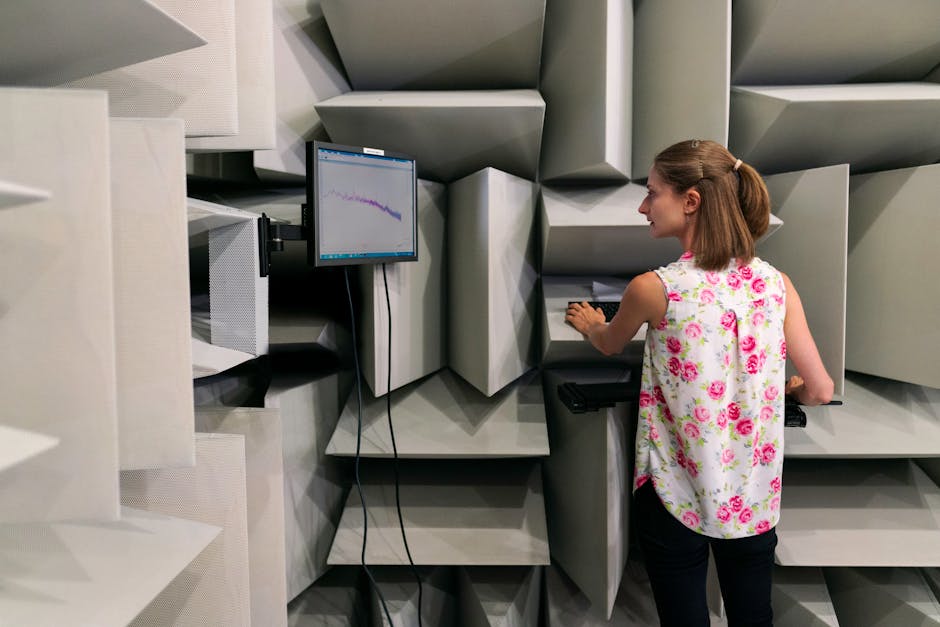
If you're listing equipment on OohYeah, run these tests before you describe the condition. Mention what you tested and what works. Buyers trust sellers who are transparent about gear functionality.
If you're buying, ask the seller if they've tested the gear and what results they got. Request a video of them running an audio test if possible. This protects both sides and keeps the transaction smooth.
Related: Best Audio Advisor for High-End Gear Buyers in 2026
Many of the best used audio deals come with minor cosmetic wear but perfect sound. An audio test proves that to a potential buyer, which justifies the price and closes the sale faster.
Common Audio Test Mistakes to Avoid
Don't rely on one song to test your gear. Different recordings expose different problems. Test with multiple audio sources: a sine wave tone, speech, and actual music.
Don't max out the volume during testing. You'll risk damaging speakers or your ears. Keep it at moderate listening level.
Don't ignore cables. A bad cable can make perfectly good speakers sound broken. Always test with multiple cables if possible.
Don't skip the basics. Before assuming hardware is broken, restart your device, check cable connections, and test with a different audio source. Most "failed" audio tests are actually just plugging or software issues.
Free Tools and Resources for Audio Testing
You don't need to buy anything. Browser-based tools are free and available instantly. According to AudioCheck, there are dozens of online audio tests you can run right now—no downloads, no subscriptions.
Most DAWs (Digital Audio Workstations) like GarageBand, Reaper, or Ableton also have built-in tools to monitor input and output levels. If you already have music software, you have a testing tool ready to go.
For more in-depth testing, free software like Audacity lets you record, analyze waveforms, and export audio files. It's perfect for diagnosing problems or comparing before and after audio quality.
When you're ready to buy or sell used audio gear without marketplace commissions eating into your profits, check out OohYeah. Test your equipment, describe it honestly, and connect directly with buyers or sellers who value fair pricing and transparency.
Quick Troubleshooting Guide
No sound at all: Check volume levels on both device and speaker. Test with a different audio source. Verify cables are plugged in firmly.
Sound only in one ear/channel: Try a different cable. Restart the device. If one side is still silent, the speaker or input might be damaged.
Crackling or distortion: Lower the volume. Check for loose cables. Update drivers or software. If it persists, the speaker might have a blown driver.
Weak or very quiet sound: Increase volume on your device and speaker separately. Check for mute buttons. Test with a different source to rule out software.
Cutting in and out: If wireless, restart the connection. If wired, try a different cable. Move closer to the speaker if using Bluetooth.
What's the difference between an audio test and a hearing test?
An audio test checks your gear's performance—whether speakers, mics, and headphones work correctly. A hearing test checks your ability to hear different frequencies and volumes. They're completely different. You're testing equipment, not your ears.
Can I test my gear without a computer?
Yes. Use your phone to play music or access an online stereo test through a browser. You can also test by ear: play music, listen for distortion or silence, and check that sound comes from all the right places.
How often should I run an audio test?
Test gear before you buy or sell it. Test your setup after moving or changing cables. Test whenever something sounds off. Regular testing catches problems before they ruin a session or performance.
Is an online audio test as good as professional testing equipment?
For basic functionality checks, absolutely. Online tests confirm speakers work, channels are separate, and there's no obvious distortion. If you need exact frequency response measurements or professional analysis, you'd need specialized equipment. But for checking if gear is functional before a sale, online tests do the job perfectly.